Keyboard Shortcuts
AetherSDR has two kinds of keyboard shortcut:
- Operating shortcuts drive the radio: tuning, MOX, push-to-talk, AF gain, band and mode changes and so on. They are off by default.
- Application shortcuts belong to menus and windows (Minimal Mode, UI scale, Full Screen). They always work.
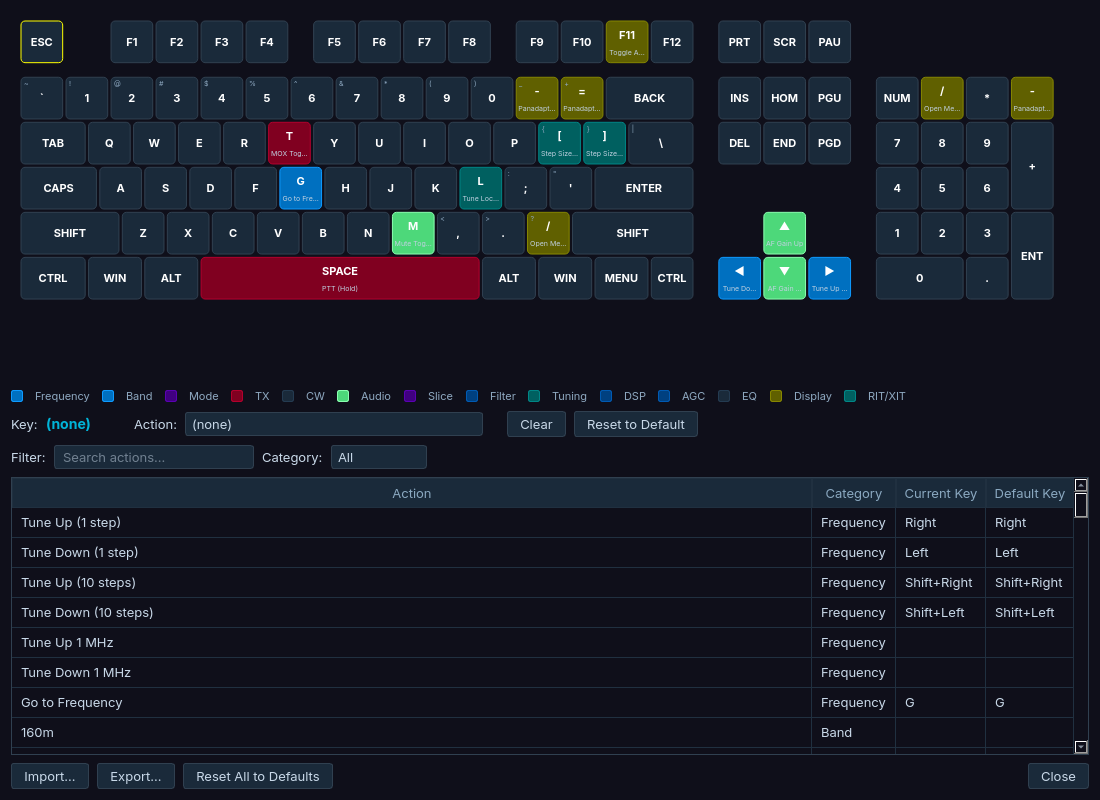
The keyboard shortcuts editor. Bound keys are coloured by category on the keyboard map; the table below lists every action.
Setup
Settings → Keyboard Shortcuts (a checkable item) turns operating shortcuts on or off. It is off by default: if the keys below do nothing, check this first.
While shortcuts are off, keys go to whatever control has focus, so Space, the arrow keys and other bound keys work normally in sliders, lists and text fields. A bound key never reaches a transmit-keying button by accident. The first time in a session that you press an operating-shortcut key that nothing else uses, the status bar shows "Keyboard shortcuts are off" for 10 seconds (also announced to screen readers).
With shortcuts on, AetherSDR still backs off while you type in a text field, does nothing to the radio while disconnected, and won't tune a locked slice.
Using keyboard shortcuts
Changing shortcuts
Settings → Configure Shortcuts... opens the editor:
- Click a key on the on-screen keyboard map.
- Pick the action for that key. If the key is already in use, AetherSDR asks before reassigning it.
- Clear removes the selected key's action; Reset to Default restores one shortcut; Reset All to Defaults starts over.
The editor works one key at a time, so it is easiest for single-key bindings. Cleared bindings stay cleared after a restart.
Backing up and copying shortcuts
Export... saves your whole shortcut setup as a CSV file (AetherSDR_Shortcuts_<timestamp>_v<version>.csv); Import... applies one, for example on another computer.
- An older release imports the actions it knows and reports newer ones as skipped. Keep the original file: the skipped rows are still there when you go back to a newer release.
- Actions you never customized adopt the importing release's defaults; customized and deliberately cleared bindings come across exactly.
- If an imported shortcut takes a key you had bound to a different action, your local binding is cleared and reported. Use Reset to Default to restore it.
- A malformed file is rejected before anything changes.
Minimal Mode
Minimal Mode (Ctrl+Shift+M, or View → Minimal Mode) shrinks the main window to a narrow strip holding the applet panel. The panadapters are hidden and their rendering paused (floating panadapters stay open), the status bar and menus are hidden, and the title bar keeps only the active radio tab and status badges. Press Ctrl+Shift+M again, or the title bar's maximize button, to return. Minimal Mode is also a bindable action for controllers. The Mini-Pan applet (see Panadapter Controls) is useful here because it shows a narrow spectrum without a full panadapter.
Upgrading from an older version: Minimal Mode was Ctrl+M on Windows. It is now Ctrl+Shift+M everywhere, so Cmd+M is free for Minimize on macOS.
Reference
Default operating shortcuts
| Key | Action |
|---|---|
| Right / Left | Tune up / down 1 step |
| Shift+Right / Shift+Left | Tune up / down 10 steps |
| G | Go to frequency entry on the active slice |
| T | Toggle MOX |
| Space | Push-to-talk while held |
| Up / Down | AF gain up / down |
| M | Mute toggle |
| ] / [ | Step size up / down |
| L | Tune lock toggle |
Push-to-talk hold
PTT (Hold) keys the transmitter while its key is held and un-keys when you let go. It follows whatever key you bind it to (Space by default). Releasing the key always un-keys, and the transmitter also un-keys if AetherSDR loses keyboard focus or a modifier is released mid-hold.
Actions you can assign
The editor lists many more actions that ship unbound. They are grouped by category:
| Category | Examples |
|---|---|
| Frequency | Tune up/down 1 MHz, Go to Frequency |
| Tuning | Step size, Tune Lock, Center Lock Active Slice |
| Slice | Next / Previous Slice, Cycle TX Slice, Split Toggle, Split Up 1 kHz / 5 kHz / 10 kHz |
| Bands and modes | Band jumps (160 m to 2 m); USB, LSB, CW, CWL, AM, SAM, FM, NFM, DFM, DIGU, DIGL, RTTY |
| Audio | Master Volume Up / Down (±5, auto-repeat), Master Mute, Mute All Slices, Squelch |
| AGC | AGC mode cycle, AGC-T up/down, RF Gain up/down |
| DSP | NB, ANF, NR2, NR4, RN2, DFNR, NR Cycle, TNF global toggle |
| Filter | Filter Widen / Narrow (±100 Hz, in the right direction for the mode) |
| RIT/XIT | RIT and XIT toggles |
| CW | Speed ±5 WPM, iambic on/off and A/B, break-in, sidetone, swap paddles, CWL offset |
| TX | TUNE, Two-Tone Tune, VOX, speech processor, TX monitor, DAX TX |
| EQ | RX EQ and TX EQ toggles |
| Display | Minimal Mode, Panadapter Zoom In/Out, Band Zoom, Segment Zoom, Open Memories |
Monitor TX (Hold) listens on a split's transmit frequency while held. It is unbound by default; see Split Operation.
Band and segment zoom do nothing on radios that can't do them. CWX and DVK F1–F12 keys follow the active slice's mode, so only the matching panel responds (see CWX Panel and DVK Panel). The same actions are available to MIDI, FlexControl and other controllers; see MIDI Controller Mapping and USB Control Surfaces.
Application shortcuts
These work whether or not operating shortcuts are on:
| Key | Action |
|---|---|
| Ctrl+Shift+M | Toggle Minimal Mode (every platform) |
| Ctrl+= / Ctrl+- / Ctrl+0 | UI scale up / down / reset to 100 % |
| Ctrl+F | FPS Meters |
| Ctrl+Shift+F | Frameless Window |
| Ctrl+Shift+S | Pop out the applet panel |
| Ctrl+Shift+L | Callsign Lookup |
| F11 (Windows/Linux), Cmd+Ctrl+F (macOS) | Full Screen |
| Cmd+M (macOS) | Minimize; no default elsewhere |
The Full Screen and Minimize keys can be rebound in Configure Shortcuts, and they also work in secondary windows and while a text field or slider has focus. On macOS, Ctrl in these shortcuts is the Command key.
Known issues
- Master Volume Up / Down steps from the last saved master level rather than the level of the path you are hearing, so after switching PC Audio on or off the first press can jump the volume (#6132).
Troubleshooting
The shortcut keys do nothing
Operating shortcuts are off, which is the default. The status bar says "Keyboard shortcuts are off" the first time you press one.
- Turn on Settings → Keyboard Shortcuts.
- Press the key again.
A key works in one place but not another
A text field has focus, so AetherSDR leaves the key to it.
- Click the panadapter (or anywhere outside the text field) and press the key again.
The tuning keys don't move the slice
The slice is tune-locked, or no radio is connected.
- Press L (Tune lock toggle), or click the 🔒 button beside the VFO flag, to unlock the slice.
- Check that a radio is connected; operating shortcuts do nothing to the radio while disconnected.
An import took one of my keys
The imported file bound that key to a different action, so your local binding was cleared and reported.
- Open Settings → Configure Shortcuts....
- Select the action and choose Reset to Default, or bind it to another key.