Radio Setup
Radio Setup holds the radio's configuration and most of AetherSDR's own preferences in one window.
Which pages appear depends on the connected radio: pages for hardware the radio does not have are hidden.
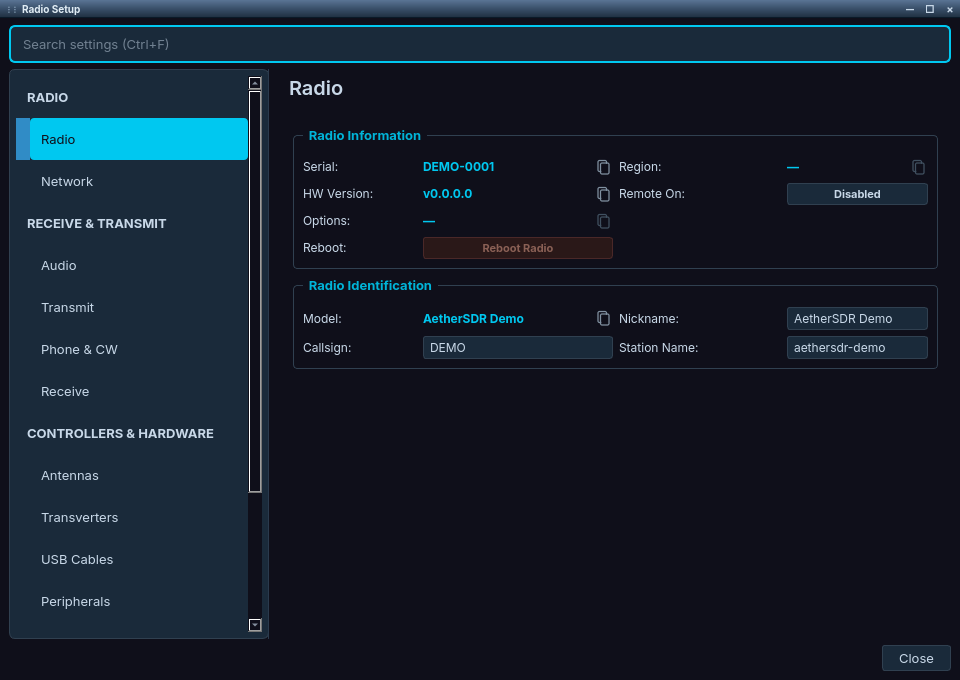
Radio Setup, open on the Radio page. The settings tree on the left groups the pages; the search box at the top finds any setting.
Setup
Open Radio Setup from the menu:
- Windows and Linux: Settings → Radio Setup...
- macOS: AetherSDR → Preferences...
Several menu items open Radio Setup straight at the right page:
- Settings → FlexControl Knob & Buttons... → Serial & Controllers
- Settings → USB Cables... → USB Cables
- Tools → Configure KiwiSDR... → Antennas
Finding a setting
Radio Setup is a searchable browser: a categorised tree of pages on the left and the selected page on the right.
- Search settings (Ctrl+F, ⌘F on macOS) filters the tree as you type. It matches page names and also common symptom words. Try latency, ptt, calibration or certificate. Press Enter to jump to the first match.
- Pages for hardware the connected radio does not have are hidden. Individual controls a radio cannot use stay visible but dimmed, with the reason in the tooltip.
Reference
RADIO
| Page | What it covers |
|---|---|
| Radio | Radio information (serial, hardware version, region, options), identification (model, nickname, callsign), license info and Firmware Update |
| Network | The radio's IP address, mask, MAC and gateway; DHCP/static IP configuration; Advanced: Enforce Private IP Connections, Agent Automation (MCP) (see Automation Bridge and MCP), Network MTU and the VITA-49 RX buffer (see Low Bandwidth Connections) |
| GPS | Whether a GPS is installed, position, grid, altitude, satellites and lock status. The full dashboard is Tools → GPS Dashboard.... See AetherClock and GPS. Hidden on radios without GPS hardware. |
| Calibration | Host-side frequency calibration in ppb, for radios that cannot calibrate themselves (Hermes-Lite 2). Hidden on FlexRadio, which calibrates on the Receive page. |
| RTL Receiver | ppm correction, IQ DC suppression and serial for an RTL-SDR dongle. Only when one is connected. |
| HL2 Hardware | Board variant, dither, companion filter board, CL1 external 10 MHz reference and tuner for the Hermes-Lite 2. Only when an HL2 is connected. |
| Droop Correction | Panadapter edge-droop correction for the ANAN-G2. Only when one is connected. |
RECEIVE & TRANSMIT
| Page | What it covers |
|---|---|
| Audio | The radio's Line Out, Headphone and Front Speaker outputs; SmartLink audio compression; packet-loss smoothing; PC audio devices, Audio Boost and Audio Buffer; recording. See Audio Settings. |
| Transmit | TX timings (ACC TX, TX delay, timeout), TX REQ interlock polarity (RCA, Accessory), Max Power, Show TX in Waterfall, Slice/TX Follow, and TX Band Settings (per-band RF/tune power, PTT inhibit and interlocks). See TX Controls. |
| Phone & CW | Microphone bias and +20 dB boost; CW iambic mode, paddle swap, sideband and CWX sync, and CW decoder RX/TX decode; Digital (RTTY mark default). See CW Decoder and CWX Panel. |
| Receive | Frequency offset (GPSDO detection, manual calibration) and the 10 MHz reference source |
| Filters | Voice, CW and Digital filter sharpness (Low Latency ↔ Sharp Filters) with Auto buttons, and Use Low Latency Filters for Digital Modes |
CONTROLLERS & HARDWARE
| Page | What it covers |
|---|---|
| Antennas | Local display names for antenna ports, and the KiwiSDR RX Antennas list. See KiwiSDR and Web-888. |
| Transverters | One tab per transverter plus + to add one. See XVTR (Transverters). |
| APD | Adaptive predistortion external sampler per TX antenna. Only on radios that report APD support (FLEX-8000 series). |
| USB Cables | The radio's USB cables, each with a Cable Type of CAT, Bit, BCD, LDPA or Passthrough. See USB Cable Management. |
| Peripherals | Station devices AetherSDR talks to directly: tuners, amplifiers, antenna switches and wattmeters. See Peripherals. |
| Serial & Controllers | USB control surfaces (Ulanzi Dial, Stream Deck+ and HID encoders), serial port and pin assignment for PTT/CW keying, the FlexControl knob, and TMate 2. See FlexControl Tuning Knob, USB Control Surfaces and Ulanzi Dial. Present only in builds with serial-port support. |
ONLINE & APPEARANCE
| Page | What it covers |
|---|---|
| Appearance & Behavior | Slice Letter Display (see Multi-Flex), slice colours (see Slice Colors), Single-click delay and mouse-wheel behaviour. Themes are under View → Theme. See Themes and Theme Editor. |
| SmartLink | Pinned SmartLink certificates. See SmartLink Setup. |
| QRZ & Callsigns | QRZ.com account and lookup cache. See Callsign Lookup. |
Known issues
- On macOS, opening the Audio page for the first time can send the Preferences window behind the main window (#6277).
Troubleshooting
A page you expect is missing
Radio Setup hides pages for hardware the connected radio does not have. For example, Calibration is hidden on a FlexRadio, and HL2 Hardware, RTL Receiver and Droop Correction appear only when that radio is connected.
- Check which radio you are connected to.
- Use Search settings (Ctrl+F, ⌘F on macOS) to find where the setting lives on this radio. For example, a FlexRadio calibrates on the Receive page.
A control is greyed out
The connected radio or this build cannot use that control.
- Hover the control. Its tooltip gives the reason.
You can't find where to connect to a radio
Radio connection is not part of Radio Setup.
- Use File → Connect to Radio..., or the + button on the title bar's radio tabs.
- Tick Connect to last radio on start up in the connect panel if you want AetherSDR to connect automatically at launch.
See First Connection and Manual Connection.