Demo Mode
Demo mode runs the full AetherSDR interface against a built-in simulator, so you can explore the app with no radio attached. It generates its own receive audio and a matching panadapter. It cannot transmit.
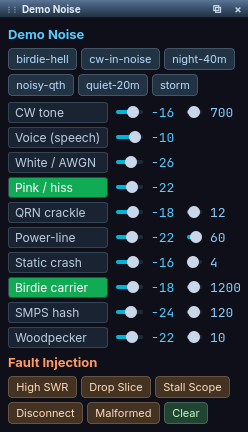
The Demo Noise applet, shown only while connected to the demo simulator.
Where to go next
- Your First Session: a guided tour you can follow on the demo.
- DSP Noise Mitigation: practise noise reduction on the Demo Noise scenes.
- Panadapter Controls: the spectrum and waterfall display.
- Memory Channels: stored on this computer.
Setup
- Open the Connect to Radio window (File → Connect to Radio...).
- On On This Network, the list includes AetherSDR Demo, labelled "Simulator (not on the air)".
- Select it and click Connect Selected Radio.
The demo always sorts below real radios and is never chosen over one. There is no menu item or command-line flag; you connect to it like any radio.
To hide it, untick Show the AetherSDR demo simulator in the Connect to Radio window. The choice is remembered.
The demo's name is its "not on the air" safety label, so it cannot be renamed.
Using the Demo
- One slice on one panadapter, with synthetic receive audio and spectrum.
- The panadapter title bar, adaptive RX filter, auto-squelch, centre lock and band recall work as they do on a radio.
- Simulated CW is proper Morse at 18 WPM and 700 Hz.
- Memory channels are stored on this computer, in the bank shared with other radios that have no memory slots of their own.
Demo Noise applet
While connected to the demo, the Demo Noise applet lets you build a noisy band and practise with the noise-reduction tools (DSP Noise Mitigation).
Presets set up a whole scene at once: quiet-20m, night-40m, storm, noisy-qth, birdie-hell and cw-in-noise.
Sources each have a toggle and a level slider, and some have a second control. Hover any source for a tooltip that explains the real-world cause and what to do about it. The CW tone slider glides its pitch without clicks.
Fault injection
The Fault Injection row lets you see how AetherSDR handles trouble without risking a real radio. The buttons are listed under Reference.
Reference
Demo Noise sources
| Source | Extra control | What it imitates |
|---|---|---|
| CW tone | Pitch (300–1200 Hz) | A wanted CW signal |
| Voice (speech) | A wanted SSB voice signal | |
| White / AWGN | The receiver's own thermal noise | |
| Pink / hiss | Atmospheric band noise | |
| QRN crackle | Rate | Lightning static from distant storms |
| Power-line | 50 / 60 Hz | Mains buzz and its harmonics |
| Static crash | Rate | Loud crashes from a nearby storm front |
| Birdie carrier | Frequency | A steady unwanted carrier |
| SMPS hash | Pulse rate | Switch-mode power supply hash |
| Woodpecker | Pulse rate | Over-the-horizon radar |
Fault Injection buttons
| Button | Effect |
|---|---|
| High SWR | Reports a high SWR |
| Drop Slice | Removes the slice |
| Stall Scope | Stops the spectrum stream |
| Disconnect | Drops the connection |
| Malformed | Injects a malformed message |
| Clear | Clears injected faults |
Troubleshooting
AetherSDR Demo is not in the radio list
Show the AetherSDR demo simulator is unticked, and the choice is remembered.
- Open File → Connect to Radio....
- Tick Show the AetherSDR demo simulator.