Memory Channels
The Memory Channels dialog stores and recalls operating setups — frequency, mode, filter, repeater offset, tone, squelch, step and digital-mode offsets — for quick recall. On a FlexRadio it is an editor for the radio's own memory bank.
Open it from Tools → Memory...
For quick recall while operating, the panadapter's overlay Memory button opens a browse panel (see Memory browse panel).
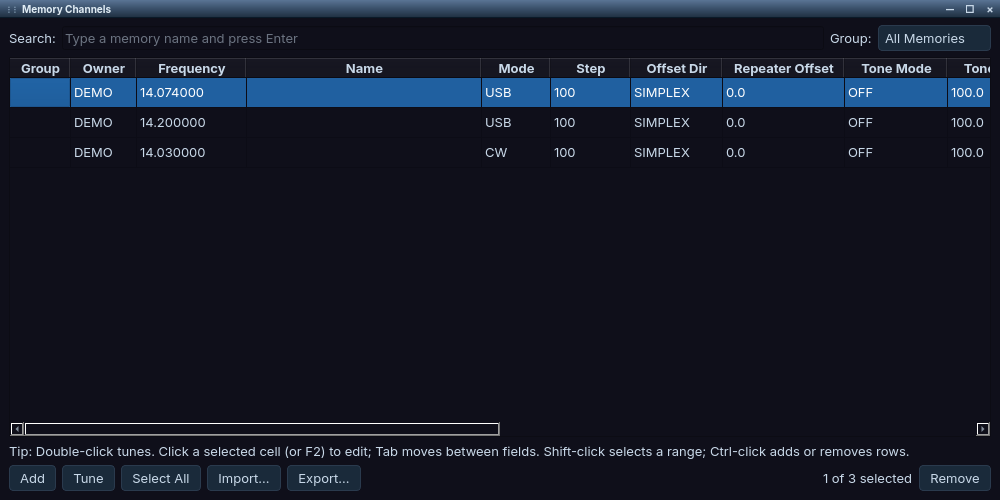
The Memory Channels window with three memories added from the demo slice.
Using memory channels
Finding a memory
- Search — type a memory name and press Enter to jump to that entry; the table filters as you type
- Profile — show "All Memories" or only the memories of one global profile
Quick interactions
- Double-click any row — tunes the active slice to that memory
- Shift-click a range — selects multiple rows
- Ctrl-click (Command-click on macOS) rows — adds/removes rows from the selection
- Edit in place — click a selected cell (or press F2) to edit it; Tab moves between fields
- Recall restores the whole setup — mode, filter and slice settings, not just the frequency
Importing and exporting
Import... detects the file format automatically:
- SmartSDR CSV (the format Export... writes)
- CHIRP-next generic CSV — import only
The result reads "Imported N … (format)". Export always writes SmartSDR CSV.
To move a whole radio database (memories along with profiles) between SmartSDR and AetherSDR, use Profiles → Import/Export Profiles...; see Profile Management.
Memory browse panel
The Memory button in the panadapter's overlay menu opens a compact list (Frequency, Name) for recall without the full dialog. Its Add Memory button always stores the active slice.
When SpotHub's Memories toggle is on, every memory also appears as a marker on the panadapter at its frequency. See SpotHub.
Memory profiles
On a FlexRadio, memories are grouped by global profile. Use the Profile filter to see one profile's memories; manage the profiles themselves in Profiles → Profile Manager... (see Profile Management).
Reference
Table columns
Sortable columns:
| Column | What |
|---|---|
| Group | Grouping label (the profile the memory belongs to) |
| Owner | Callsign that created the memory |
| Frequency | Frequency in MHz |
| Name | User-assigned name (e.g. "K7ID Repeater") |
| Mode | USB, LSB, CW, FM, etc. |
| Step | Tuning step in Hz |
| Offset Dir | Up / Down / Simplex |
| Repeater Offset | MHz |
| Tone Mode | CTCSS / DCS tone mode |
| Tone Value | Hz (CTCSS) or DCS code |
| Squelch, Squelch Level | Squelch on/off and level |
| RX Filter Low, RX Filter High | Receive filter edges |
| RTTY Mark, RTTY Shift | RTTY settings |
| DIGL Offset, DIGU Offset | Digital-mode offsets |
Buttons
| Button | Action |
|---|---|
| Import... | Import memories from a CSV file (see below) |
| Export... | Export the displayed memories to CSV |
| Add | Create a new memory from the active slice |
| Tune | Tune the active slice to the selected memory (also: double-click any row) |
| Select All | Select every visible row |
| Remove | Delete the selected memory or memories |
The selection count is shown beside the buttons.
Where memories live
- FlexRadio: memories live on the radio. They persist across power cycles and every client connected to the radio sees them.
- Radios without memory slots (Hermes-Lite 2, KiwiSDR receivers, Demo mode): AetherSDR stores the memories on your computer, with the same dialog, browse panel, CSV import/export and panadapter markers. This is one shared bank used by all such radios, not one per radio.
- Networked Icom: where the radio supports it, a Sync Memories button reads the radio's memory channels into the list (on the IC-705, choose a memory group first). Where the radio's memories are read-only, Add, Import and in-place editing are disabled with the reason in the tooltip.
Troubleshooting
Some memories are missing from the list
The Profile filter is showing one profile's memories, or the search box is filtering the table.
- Set Profile to "All Memories".
- Clear the Search box.
Add, Import and editing are greyed out on my Icom
The radio's memories are read-only.
- Hover over the greyed control; the tooltip gives the reason.
- Where the dialog has a Sync Memories button, use it to read the radio's channels into the list, then recall them as usual.
Memories don't appear as markers on the panadapter
The markers come from SpotHub.
- Open Settings → SpotHub... and turn on the Memories toggle. See SpotHub.
See also
- Net Scheduler (reminders for recurring nets, with one-click tuning)
- Profile Management
- SpotHub
- Networked Icom