TX Controls
Transmit is controlled from the TX, Phone (PHNE), P/CW and EQ applets, with the client-side voice chain in Tools → AetherTX... (see Aetherial Audio). Receive-only radios (ANAN-G2 and RTL-SDR) do not transmit. Before you key up for the first time, read Before You Transmit.
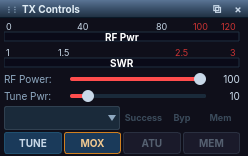
The TX Controls applet.
Using the TX applet
- Fwd Power gauge (0–200 W barefoot, 0–2000 W with a PGXL amplifier), with a PEP peak-hold tick
- SWR gauge (1.0–3.0)
- RF Power slider (0–100 %)
- Tune Power slider (0–100 %)
- TX Profile dropdown — select saved TX profiles
- TUNE — transmit a steady carrier for antenna tuning
- MOX — manual transmit
- ATU — run the antenna tuner
- MEM — use ATU memory
- APD — Adaptive Pre-Distortion (Active/Cal/Avail indicators). On FLEX-8000-series radios running fw 4.2.18+, APD also supports External APD: pick a sampler-port input via the sub-menu so the radio can train its predistortion against the output of an external linear amplifier rather than its own PA.
Hover RF Pwr or SWR for a floating badge with the exact value
(for example 12 W or 1.12:1). Forward power drops to zero as soon as you
unkey, and SWR does not show a stale reading while you receive.
An external amplifier or tuner adds its own applet: see Amplifiers and the PGXL section of Peripherals for amplifiers, and TGXL Tuner Control for the Tuner Genius XL.
TUNE
- Right-click TUNE to choose Mono Tone or Two Tone for the tune carrier.
- Changes to Tune Power made while TUNE is keyed take effect immediately, including on the Hermes-Lite 2 and networked Icom radios.
- TUNE and CW keying lock each other out: while TUNE is on, a paddle, straight key, keyboard CW or CWX text does not transmit, and TUNE will not start while a key is down or CWX is sending.
- Settings → Inhibit during TUNE ▸ chooses which integrations are held while the radio is tuning.
ATU, MEM and pre-tuning
- MEM shows the tuner's real memory state as the radio reports it, not just your last click.
- ATU tune failures are reported in the status bar.
ATU band pre-tune sweep. Open it from Tools → Pre-tune ATU Bands... or right-click ATU → Pre-tune bands…. It walks the band-plan segments of the bands you choose, tunes the ATU at each point and stores the result in the ATU memory, so later band changes recall a match instead of re-tuning. On channelised bands such as US 60 m it uses one point per channel.
- MEM must be on; otherwise the entry is disabled with "Enable MEM before running the pre-tune sweep". It is hidden or disabled on radios without ATU memory, and a disabled entry says why.
- Mode: Step (confirm each point), with Tune / Skip / Abort per point, or Auto (run unattended).
- License class limits the points to sub-bands your class may use, where the active band plan has class data (the ARRL US plan has T/G/E).
- Safety nets: a warning with an estimated duration above 100 points; a warning when Auto-mode tune power is above 20 W; an audible cue on a per-point timeout; and after 3 consecutive failed or bypassed results on one band, the sweep skips the rest of that band and moves on.
- The sweep keys the transmitter repeatedly. Make sure the bands are clear before you start.
Clear ATU memories. Tools → Clear ATU Memories... or right-click ATU → Clear ATU memories… erases the stored tuner solutions after a confirmation.
Using the P/CW applet (Phone/CW)
- Mic level gauge (−40 to +10 dB) with peak hold
- Compression gauge
- ALC gauge — reads the software ALC meter; it appears in both the Phone and CW views
- Mic profile dropdown — select mic profiles
- Mic source — MIC, BAL, LINE, ACC, PC. Choose PC to use a computer microphone and Aetherial Audio's AetherTX chain.
- Mic level slider (0–100), remembered across launches
- +ACC — accessory input toggle
- PROC — speech processor (NOR/DX/DX+)
- DAX — DAX audio toggle
- MON — monitor + volume slider
Hover the Level, Compression or ALC gauge for its exact value. In CW modes the applet switches to keyer controls, including the APF toggle and level.
Using the Phone applet
- AM Carrier slider (0–100)
- VOX toggle + level + delay
- DEXP — downward expansion (noise gate on the radio's mic path)
- TX Filter — Low Cut / High Cut step buttons
TX filter warning
If the TX low and high cut leave out your transmit audio, the radio keys but puts out almost no RF. AetherSDR measures the loss across the radio's TX filter and, when it reaches 40 dB or more, shows a card on the panadapter naming the passband and the measured attenuation, once per transmission. This matters most in DIGU/DIGL, where WSJT-X reports a normal cycle at zero power. CW is excluded, and the card is not available on the Hermes-Lite 2.
Using the EQ applet
- 8-band graphic equalizer (63 Hz – 8 kHz)
- ±10 dB vertical sliders per band
- Independent RX and TX views; the view you chose is remembered
- ON toggle + reset button
Transmitting
- Press MOX (or use PTT) to transmit
- The VFO marker turns orange/red during TX
- The waterfall switches to FFT-derived rows during TX, scrolling at the same rate as on receive, masks the TX passband on every overlapping panadapter, and holds its dBm range until you return to receive
- Interlock problems that block transmit (amplifier warming up, ATU busy, band not allowed) appear as notifications, only when transmit is actually blocked
Transmit timer
While you transmit, a green M:SS timer (H:MM:SS after an hour) appears in
the title bar, just left of the PC Audio button. It counts each key-down
from 0:00, holds the final time for 15 seconds after you unkey and then fades
out. It runs for your own transmissions (MOX, PTT, footswitch, VOX, CW and
tune), never for TCI or DAX transmissions from other programs.
Using AetherTX (Aetherial Audio)
The client-side transmit voice chain — gate with RN2, EQ, split-band de-esser, compressor with Drive/Phase, tube, AetherVoice exciter, reverb and the final output stage with brickwall limiter, DC block, test tone and Quindar tones — lives in the AetherTX window, Tools → AetherTX... AetherTX needs a computer microphone (Mic source PC).
See Aetherial Audio for the stage reference and profiles.
Quindar tones
The AetherTX Final Output stage has a QUIN button that plays the Apollo-era chirp when you key and unkey: a 2525 Hz intro and a 2475 Hz outro.
Right-click it to open the editor:
- Style — Tone (classic chirp) or Morse (keyed K / BK)
- Level — −20 to 0 dBFS
- Tone fields — Intro / Outro frequency (2400–2700 Hz), duration (100–500 ms)
- Morse fields — WPM (20–60), pitch (400–1200 Hz)
- Test intro / Test outro — audition locally without keying
Known issues
- With Mic source set to PC, transmit audio can be silent after startup until you switch the source to BAL and back to PC (#5442).
- On a remote FLEX-8600 over SmartLink, TUNE may not work while AetherSDR is connected to Genius peripherals (Antenna Genius, PGXL, TGXL) (#6001).
Troubleshooting
The radio keys but puts out almost no RF in DIGU/DIGL
The TX filter's low and high cut leave out your transmit audio. When the loss reaches 40 dB or more, AetherSDR shows a card on the panadapter naming the passband and the measured attenuation.
- In the Phone applet, use the TX Filter Low Cut and High Cut buttons to widen the filter until it covers your audio tones.
- Transmit again and check that the warning card no longer appears.
Mic source is PC, but VOX does not open and transmit audio is missing
The computer's selected microphone (Input) is not your microphone, for example a virtual "DAX Mic" device.
- Open Settings → Radio Setup... → Audio.
- Choose your real microphone as the Input device.
- Check that the Mic level gauge in the P/CW applet moves when you speak.
TUNE does not start
TUNE and CW keying lock each other out. TUNE will not start while a key is down or CWX is sending.
- Release the paddle or straight key.
- Wait for CWX to finish sending, or stop it.
- Press TUNE again.
Pre-tune bands is disabled
The ATU pre-tune sweep needs ATU memory, so the entry is disabled with "Enable MEM before running the pre-tune sweep".
- Turn on MEM in the TX applet.
- Open Tools → Pre-tune ATU Bands... again. If the entry is still disabled, hover it: the radio may have no ATU memory.
A notification says transmit is blocked
An interlock is holding transmit off: for example an amplifier warming up, the ATU busy, or a band the radio does not allow.
- Read the notification for the reason.
- Wait for the amplifier or ATU to finish, or move to a band you may transmit on, then key again.
See also
- Before You Transmit
- Aetherial Audio — the AetherTX voice chain and its profiles.
- Meters — the cross-needle Power & SWR (PWR) applet and the HLTH antenna health trend.
- Amplifiers and TGXL Tuner Control — external amplifier and tuner applets.
- Split Operation — transmitting on a second slice.
- PSK Reporter Map — includes a one-shot WSPR beacon that transmits a single WSPR frame.