SpotHub
Status: Supported · Applies to: FlexRadio, Hermes-Lite 2 (experimental), Networked Icom (early; IC-7300MK2 supported)
SpotHub is AetherSDR's spot manager. It gathers spots from DX clusters, the Reverse Beacon Network, WSJT-X, DXLab SpotCollector, POTA, N1MM+/DXLog, the EiBi shortwave schedule and FreeDV Reporter, and draws them on the panadapter as colour-coded callsign labels. It also has a sortable spot list with band filters, and a Display tab that controls how spots look. The Kiwi DX overlay and the panadapter-driven Signal History markers are switched on from the same Display tab.
All spot sources run on a worker thread, and spots are forwarded to the radio in batches once a second.
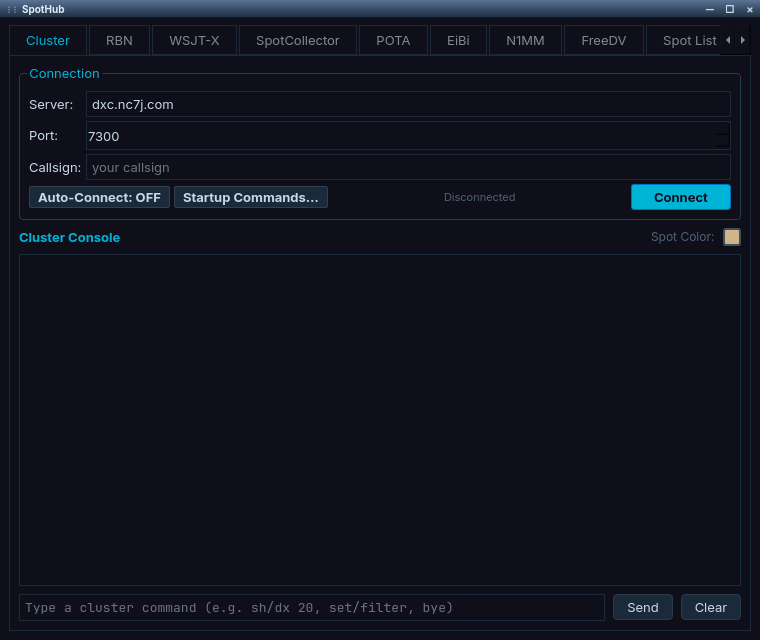
SpotHub, open on the Cluster tab. Each tab is one spot source.
Setup
Open SpotHub from Settings → SpotHub…
SpotHub has ten tabs: Cluster, RBN, WSJT-X, SpotCollector, POTA, EiBi, N1MM, FreeDV, Spot List and Display. The FreeDV tab is only present in builds with Qt WebSockets.
Every source tab has an Auto-Start (or Auto-Connect) toggle that starts it when the radio connects, a Start / Stop (or Connect) button, a status line and a console. Each console has a Clear button, which clears the console and deletes its stored log.
Using the spot sources
Cluster (DX Cluster)
Connects to a DX cluster node over telnet (DX Spider, AR-Cluster, CC Cluster).
- Server / Port / Callsign — default
dxc.nc7j.com:7300 - Auto-Connect — connect when the radio connects
- Startup Commands… — cluster commands sent automatically after every login, one per line (for example
SET/NAME,SET/QTH,ACCEPT/SPOT) - Cluster Console — live output with a command line (
sh/dx 20,set/filter,bye…) - Spot Color — default tan
RBN (Reverse Beacon Network)
Skimmer spots from the Reverse Beacon Network, over the same telnet protocol.
- Server / Port — default
telnet.reversebeacon.net:7000 - Callsign — falls back to the cluster callsign when empty
- Rate Limit — maximum spots per second sent to the radio (default 10), so contests don't flood the display. Extra spots are queued for the next batch.
- Startup Commands…, Auto-Connect, RBN Console and Spot Color (default blue) as on the Cluster tab
WSJT-X (decode spotter)
Listens for WSJT-X decode messages over UDP and spots the stations you are hearing.
- Address / Port — default
224.0.0.1:2237(multicast). Use0.0.0.0for unicast. - Spot Filter — which decodes are spotted, each with its own colour:
- CQ (default green)
- CQ POTA (default cyan)
- Calling Me (default red). Your callsign comes from the cluster login, or the station callsign if no cluster login is set.
- Default colour (white) for anything else
- Label opacity follows signal strength: weak decodes are faint, strong ones solid.
- Spot Life — 30–300 s (default 120 s), separate from the cluster lifetime
- WSJT-X Decodes console — callsign, frequency, SNR and the decoded message
Each spot is placed on the band of the WSJT-X instance that reported it, so several instances on different bands don't mix. The decoded text (for example CQ N0CALL DN18) appears in the Spot List's Comment column.
Setup: in WSJT-X, File → Settings → Reporting, make sure the UDP server is on (port 2237). In AetherSDR, press Start on this tab (or turn on Auto-Start). See also WSJT-X Integration.
SpotCollector
Receives DX spots pushed by DXLab SpotCollector over UDP.
- UDP Port — default 9999. In SpotCollector, enable UDP broadcast to this port.
- Alternatively, connect the Cluster tab to SpotCollector's telnet interface.
POTA (Parks on the Air)
Polls the POTA API (api.pota.app) for active activations. No account is needed.
- Poll Interval — 15–300 s, default 60 s
- POTA Activations console — callsign, frequency, park reference, park name and mode
- Spot Color — default yellow
- Spots last as long as the activation's own expiry time. Only new spots are forwarded.
The Comment column shows the park reference and name, for example US-4567 Yellowstone National Park SSB.
EiBi (shortwave broadcast schedule)
Shows broadcast stations from the EiBi shortwave schedule.
- The schedule is downloaded from
www.eibispace.de/dx/eibi.txtand cached for 7 days. The tab shows Cache File: age and Next Auto-Fetch:. - Update Now forces a fresh download.
- Only stations on the air now (by schedule day and UTC time) are shown, re-checked every minute.
- Hover a marker for the country, language or mode, target area and transmitter site.
- Spot Color — default
#8aa8c0. Changing it repaints markers already on screen.
N1MM (contest bandmap)
Receives bandmap spots broadcast by N1MM Logger+ or DXLog.
- UDP Port — default 12060, the same as SmartSDR CAT's N1MM port, so existing broadcast setups work unchanged.
- Spot Lifetime — 0–1440 minutes, default 180. 0 = "Never expire". This is a safety net in case the logger exits without deleting its spots.
- Setup in N1MM+: Config → Configure Ports… → Broadcast Data, tick Spots, and add this computer's address and port as a destination. "Contacts" (logged QSOs) is ignored.
- N1MM sends explicit add, update and delete messages, so spots follow the logger exactly.
- Contest Status Colors — eight swatches: Busted call, Dupe, Needed multiplier, CQ frequency, Busy (marked), QTC, New QSO (not mult) and No status. They follow your theme until you override them.
The Source column shows N1MM.
FreeDV (FreeDV Reporter)
Connects to the FreeDV QSO Reporter (qso.freedv.org) and spots active FreeDV stations in real time. When it connects, the server replays every active station, so spots appear at once. Spots show the mode and grid square in the Comment column.
- Spot Color — default dark orange
#FF8C00; lifetime 120 s - Station Reporting group:
- Enable FreeDV Reporter reporting when RADE is active — reports your own station while you run RADE. Reporting needs a callsign and a grid square, because FreeDV Reporter is a public map.
- Callsign (with Use radio), Grid Square (with Use GPS)
- Station Msg: — the same message as the Message field in Tools → FreeDV Reporter…; the two stay in sync.
See also RADE Digital Voice.
Using the Spot List
A sortable table of every spot from every source.
| Column | Contents |
|---|---|
| Time | UTC time of the spot |
| Freq (kHz) | Spotted frequency |
| DX Call | Spotted station |
| Mode | Mode, when known |
| Comment | Mode, park reference, decoded message, … |
| Spotter | Who spotted it |
| Band | Band |
| Source | Cluster, RBN, WSJT-X, SpotCollector, POTA, N1MM, FreeDV, … |
- Bands: checkboxes filter the list by band; they are saved.
- Sorting: click any column header. Click Time to go back to time order.
- Column visibility: right-click the header to show or hide Mode, Comment, Spotter, Band and Source. Time, Freq and DX Call are always shown. Your choice is saved.
- Auto-scroll: newest spots are at the top when sorted by Time (newest first). The list follows whichever end the newest spot is on; sorting by any other column stops auto-scroll so the view stays put.
- Freeze stops the list re-ordering so you can click a spot. Spots keep arriving in the background and appear as soon as you unfreeze.
- Double-click a row to tune the active slice.
- Clear empties the list and deletes the stored cluster/RBN logs. It does not send anything to the radio.
Using the Display tab
Controls how spots look on the panadapter. A row of toggle buttons sits at the top:
[Spots] [Passive] [Memories] [Kiwi DX] [Auto] [Signals] [QRM] [Clear All]
| Toggle | What it does |
|---|---|
| Spots | Master switch for the spot overlay |
| Passive | Show the radio's spots without sending spot add commands back to it |
| Memories | Show the radio's memory channels as spot-like markers |
| Kiwi DX | Show the KiwiSDR DX Community database (off by default; see below) |
| Auto | Switch the slice mode when you click a spot that carries mode information |
| Signals | Gold markers for detected voice-width signals (Signal History, from the panadapter itself) |
| QRM | Red markers for persistent carriers and wideband interference (Signal History) |
| Clear All | Clears DX spots, the memories feed and Signal History / QRM markers in one click |
General display settings
- Levels — how many rows of labels stack (1–10)
- Position — vertical starting position, % from the top of the spectrum
- Font Size — label size (8–32 px)
- Spot Lifetime — 10 seconds to 1 day (applies to cluster and RBN spots)
- Override Colors — draw every spot in one colour
- Override Background — label background colour, with an Auto contrast option
- Background Opacity — 0–100 %
- Spot Lines — vertical lines from each label down to the spectrum
- Total Spots — how many spots are on the panadapter
Kiwi DX overlay
The KiwiSDR DX Community database ships with AetherSDR, so no download is needed. Cyan diamond markers for utility, beacon, broadcast and DX stations sit on the band-plan strip, so the band plan must be visible. Hover a marker for its frequency, station, mode, passband and notes. Clicking one tunes the slice and sets the RX filter width; with Auto on it also sets the mode.
DXCC Coloring
Imports an ADIF log and colours spot labels by worked status: New DXCC, New Band, New Mode or Worked. The log file is watched, so colours update whenever your logger writes a QSO.
- DXCC Colors — Enabled / Disabled
- Log File (ADIF) — Browse…
- Imported — live QSO and entity counts
- Colors — four swatches
Signal History
Shapes the Signals and QRM markers (the toggles on the top row decide whether they are shown):
- Marker Lifetime — 15–300 s, default 60. How long an inactive marker stays.
- QRM Gate — 3–30 s, default 6. How long a narrow carrier or wideband signal must persist before it counts as QRM.
- Colors — Signals (default amber
#FFC800) and QRM (default red) - Snap to Step — clicking a marker tunes to the nearest multiple of the slice's step
- Filter Opacity, Filter Delay, Filter Match Window — settings for Smart Spot Filtering (below)
Smart Spot Filtering
View → Smart Spot Filtering (off by default) dims SSB and voice spots that have no detected signal nearby, so you can see at a glance which spotted stations are actually on the air. Spots on active frequencies stay bright. CW and digital spots, and memory bookmarks, are not affected. It needs Signal History to be running.
- Filter Opacity — 0–100, default 80. 100 hides unconfirmed spots completely; 80 leaves them about 20 % visible.
- Filter Delay — 0–120 s, default 30. How long to wait after turning Smart Spot Filtering on before dimming anything, so Signal History has time to fill.
- Filter Match Window — how close a signal must be to confirm a spot, 100–5000 Hz, default 1000 Hz. Double-click to reset.
Using spots on the panadapter
Spot density badges
When more spots overlap than Levels allows, they collapse into an amber +N badge. Click the badge for a list of the hidden callsigns; click one to tune.
Right-click a spot
| Action | Description |
|---|---|
| Tune to <callsign> | Tunes the active slice to the spot |
| Copy Callsign | Copies the callsign to the clipboard |
| Lookup on QRZ | Opens the station's qrz.com page in your browser (see also Callsign Lookup) |
| Remove Spot | Removes the spot |
Adding a spot by hand
- Right-click an empty part of the panadapter and choose Add Spot at X.XXX MHz…
- Fill in Frequency (MHz) (pre-filled and snapped to the tuning step), Callsign (required), Comment (optional) and Lifetime (5 minutes to 2 hours).
- Tick Forward to DX Cluster to send it to the connected cluster as a standard
DXcommand. AetherSDR confirms when it forwards.
A spot you post is not shown twice when the cluster echoes it back.
Other radio families
On the Hermes-Lite 2 and networked Icom radios, which have no spot store of their own, AetherSDR draws cluster, RBN, WSJT-X, POTA and manual spots itself. Right-click → Remove Spot removes these too.
Reference
Deduplication
Spots drawn on the panadapter are deduplicated by callsign and frequency across all sources. The same callsign within 1 kHz is dropped while the first spot is still live; if the station moves, the old entry is replaced. N1MM spots are matched by callsign and band, because N1MM sends its own updates and deletes.
Where settings and logs are kept
SpotHub settings are stored with the rest of AetherSDR's settings in AetherSDR.db (see Settings and Backups). Source logs (dxcluster.log, rbn.log, wsjtx.log, pota.log, freedv.log, spotcollector.log) are in the spothub folder of AetherSDR's configuration directory (~/.config/AetherSDR/spothub/ on Linux).
Some useful setting keys, for the Settings Browser (Settings → Settings Browser…):
| Key | Default | Description |
|---|---|---|
DxClusterHost / DxClusterPort | dxc.nc7j.com / 7300 | Cluster server |
RbnHost / RbnPort | telnet.reversebeacon.net / 7000 | RBN server |
RbnRateLimit | 10 | Max RBN spots per second to the radio |
WsjtxAddress / WsjtxPort | 224.0.0.1 / 2237 | WSJT-X listener |
WsjtxSpotLifetime | 120 | WSJT-X spot lifetime (s) |
SpotCollectorPort | 9999 | SpotCollector UDP port |
PotaPollInterval | 60 | POTA poll interval (s) |
N1MMSpotPort | 12060 | N1MM UDP port |
N1MMSpotLifetimeSec | 10800 | N1MM spot lifetime (s); 0 = never expire |
N1MMSpotAutoStart | False | Start N1MM listener on connect |
EiBiAutoStart | False | Start EiBi feed on connect |
EiBiSpotColor | #8aa8c0 | EiBi marker colour |
ShowKiwiDxSpots | False | Kiwi DX overlay |
SmartSpotFilterOpacity | 80 | Smart Spot Filtering opacity |
SmartSpotFilterDelayS | 30 | Smart Spot Filtering delay (s) |
SmartSpotFilterMatchHz | 1000 | Smart Spot Filtering match window (Hz) |
ManualSpotLifetime | 1800 | Default lifetime of hand-added spots (s) |
SpotForwardToCluster | False | Forward hand-added spots to the cluster |
Known issues
- On ANAN-G2 and RTL-SDR, cluster, RBN, WSJT-X, POTA and manual spots never appear on the panadapter (#6039).
- The SpotCollector tab waits for UDP spots that DXLab SpotCollector does not send, so it receives nothing. Connect the Cluster tab to SpotCollector's telnet interface instead (#5131).
- Repeated spots of the same station on the same frequency can stack into a block of overlapping labels (#5231).
Troubleshooting
No spots appear on the panadapter
The spot overlay is off, or no source is running.
- On the Display tab, turn on Spots.
- On a source tab, press Start (or Connect) and watch its status line and console.
- If Smart Spot Filtering is on, voice spots with no signal nearby are dimmed. Turn it off under View → Smart Spot Filtering to check.
Kiwi DX markers don't appear
The markers sit on the band-plan strip.
- On the Display tab, turn on Kiwi DX.
- Make the band plan visible: View → Band Plan → Small, Medium, Large or Huge (anything but Off).
WSJT-X decodes are not spotted
WSJT-X is not sending UDP decode messages, or the WSJT-X tab is not listening.
- In WSJT-X, File → Settings → Reporting, turn on the UDP server (port 2237).
- On the SpotHub WSJT-X tab, check the Address / Port match, then press Start.
The Spot List stops changing
Freeze is on. Spots keep arriving in the background.
- Turn Freeze off; the held spots appear at once.
The Spot List no longer scrolls to new spots
The list is sorted by a column other than Time, which stops auto-scroll.
- Click the Time header to go back to time order.