DSP Noise Mitigation
Status: Supported · Applies to: All radios (radio-side filters: FlexRadio)
AetherSDR gives you two layers of noise mitigation. The radio-side filters run inside your FlexRadio. The client-side methods run on your computer after the audio arrives: AetherSDR has seven of them — NR2 (spectral), RN2 (RNNoise), NR4 (libspecbleach), NNR (WDSP Neural Noise Reduction), DFNR (DeepFilterNet3), BNR (NVIDIA Maxine, on a local GPU) and MNR (macOS). Every client-side method denoises the left and right channels independently, so pans and diversity reception survive it.
The in-app guide Help → Understanding Noise Cancellation... covers the same ground for newcomers.
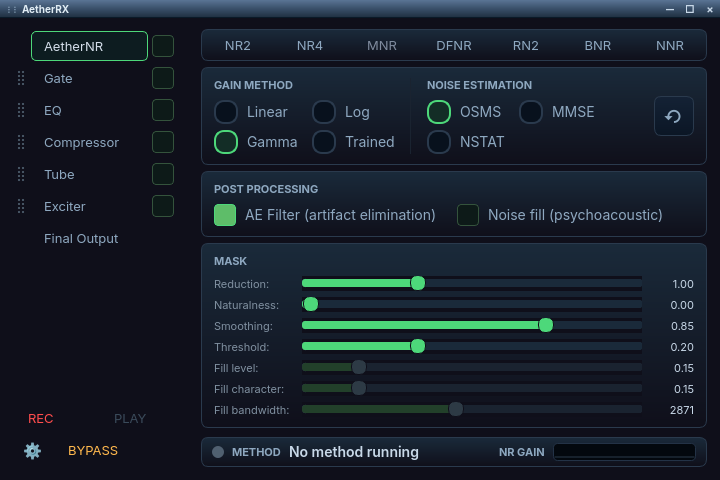
The AetherRX window: the receive processing chain on the left, the selected stage's settings on the right.
Using the radio-side filters (FPGA)
These run on the radio's FPGA — zero CPU cost to your PC. All use preset, optimized parameters with no user adjustments required — just toggle on/off. We did, however, add "amount" sliders in the DSP slide bar menu if you're feeling adventurous.
The radio-side buttons are on the VFO flag's DSP tab: NR, NB, ANF and APF on the first row; NRL, NRS, RNN and NRF on the second.
NB — Noise Blanker
Blanks short impulse noise (ignition interference, switching power supplies). Has an adjustable level (0-100) in the DSP side panel.
NR — Noise Reduction
General-purpose noise reduction. Adjustable level (0-100). Good starting point for noisy bands.
ANF — Auto Notch Filter
Removes a single persistent tone from the passband. Adjustable level (0-100). Best for a dominant interfering carrier.
NRL — Noise Reduction Leaky
Purpose: Reduce random band noise and background hiss.
Adaptive time-domain "Leaky LMS" filter that preserves correlated signals (voice, CW) while removing uncorrelated noise. Best for daily operation when signals are buried in static. Avoid when signals are already clean — may introduce slight "watery" audio if unnecessary.
Available on all Flex Radios.
ANFL — Adaptive Notch Filter (Leaky)
Purpose: Remove steady tones or power-line hum.
An adaptive filter that detects and cancels correlated tone interference. Best for hum, steady carriers, or single persistent tones. Avoid when no hum/tone is present — could partially notch the desired signal.
Available on all Flex Radios.
ANFT — Adaptive Notch Filter (FFT)
Purpose: Suppress up to five narrowband tones in the passband (≥ –110 dB).
FFT-based spectral notch filter that identifies and removes stable tone noise. Best for power supply hum, transformer buzz, grounding-related tones, or spurs.
Available on all Flex Radios.
NRF — Noise Reduction Filter
Purpose: Reduce steady background noise using frequency-domain processing.
Spectral subtraction estimates and removes broadband noise from each frequency bin. Best for constant hiss, fan noise, or environmental hum.
Available on FLEX-8000 (BigBend) and Aurora series only.
NRS — Noise Reduction Speech
Purpose: Improve speech clarity by lowering noise most aggressively between words.
Spectral subtraction combined with Voice Activity Detection (VAD). Best for SSB/AM voice operation in consistent noise environments.
Available on FLEX-8000 (BigBend) and Aurora series only.
RNN — Recurrent Neural Network Suppression
Purpose: AI-based removal of complex or varying noise while keeping speech natural.
Deep-learning model that separates speech from noise across time and frequency. Best for mixed or changing noise sources — fans, equipment, electrical noise, band noise.
Available on FLEX-8000 (BigBend) and Aurora series only.
APF — Audio Peaking Filter
Narrow bandpass filter centered on the CW pitch frequency. Enhances CW signals by attenuating everything outside the peak. Adjustable level (0-100). Only available in CW mode; the level slider is inactive until APF is engaged.
WNB — Wideband Noise Blanker
Wideband impulse noise blanker. Controlled via the ANT sub-menu on the left sidebar. Has an adjustable level (0-100) and appears as a "WNB" indicator on the FFT display when active. WNB belongs to the radio: AetherSDR uses whatever state the radio reports on connect and does not replay a saved state of its own.
Using the client-side methods
Important: the seven client-side methods process audio on your PC, not on the radio. They only affect audio played through your computer's speakers or headphones. If you listen through the radio's physical outputs (line out, headphone jack or front speaker), you will not hear client-side processing — only the radio's built-in filters (NR, NRS, NRL, RNN and so on) apply there. To benefit from client-side processing, switch to PC audio.
Where the controls are
All client-side methods live in AetherRX, on its AetherNR tab. Open it with Settings → AetherRX... or the AetherRX button on the VFO flag's DSP tab. That button lights up whenever a client NR method is running.
- The method row picks one of NR2, NR4, MNR, DFNR, RN2, BNR or NNR; the page below it holds that method's settings. Methods that are not available on your computer or in your build are disabled with a tooltip explaining why.
- A status strip shows the active method and its key setting.
- BYPASS, at the foot of the AetherRX window beside the settings gear, suppresses every receive stage at once, AetherNR included. Click it again to restore what was on. Use it to A/B processed and unprocessed audio.
- The NR Cycle action (Off → NR → NR2 → NR4 → DFNR) can be bound to a key under Settings → Configure Shortcuts... or to a MIDI control. On radios other than FlexRadio it skips the radio-side NR and goes straight to NR2.
- AetherRX profiles save the active NR method together with the rest of the receive chain. See Aetherial Audio.
Rules that apply to all seven
- One at a time. Selecting any client method turns off the one that was running. Any client method can be stacked with any radio-side filter.
- Voice modes only. The client methods switch themselves off in CW, CWL, RTTY and DIGU/DIGL, where they would suppress CW tones or corrupt data. Switch back to a voice mode and they become available again. For noise help in CW, use the radio's NR and ANF.
- Stereo. Each method runs one instance per audio channel, so a hard pan lands instantly and diversity keeps each antenna in its own ear.
NR2 — Spectral Noise Reduction
Purpose: Advanced noise reduction using the Ephraim-Malah MMSE Log-Spectral Amplitude estimator, derived from Warren Pratt NR0V's WDSP library.
Contributed by @EI6JGB
NR2 estimates the noise floor in each frequency bin and applies a spectral gain that suppresses noise while preserving speech. It excels at steady noise — constant hiss or hum — and gives you the most knobs of any method.
Settings (AetherNR → NR2):
- Gain method — Linear, Log, Gamma (default) or Trained
- Noise estimation — OSMS (default), MMSE or NSTAT (for noise that changes quickly)
- Reduction (0.50–2.00), Naturalness (residual noise floor, 0–0.15), Smoothing (0.50–0.98) and Threshold (speech detector, 0.05–0.50)
- AE Filter (artifact elimination) — smooths ringing and musical artifacts
- Noise fill (psychoacoustic) — off by default. Mixes a little shaped noise back into the gaps between syllables so the result sounds less "dead"; Fill level, Fill character and Fill bandwidth shape it.
NR2 keeps its noise estimate across a transmission, so it does not have to re-converge every time you unkey.
The first time you enable NR2, AetherSDR optimizes its FFT plans. See NR2 Noise Reduction.
RN2 — Neural Noise Suppression (RNNoise)
Purpose: AI-based removal of complex or varying noise using the Xiph RNNoise recurrent neural network.
Unlike the radio's RNN (which runs on BigBend/Aurora FPGAs), RN2 runs on your PC's CPU and works with any radio. It handles non-stationary noise that statistical methods struggle with — fans cycling, changing band noise — and costs almost no CPU.
Settings:
- Noise Floor — 0–50 %, default 0 %. How much of the original signal RN2 leaves under the denoised audio. At 0 % RN2 suppresses fully and goes silent between phrases; 10–20 % leaves a steady, quiet noise floor so the band still sounds live.
When to use: quick cleanup with no setup; SSB voice in noisy conditions; FLEX-6000 radios without radio-side RNN. If it clips very weak signals, try DFNR or NR2.
RN2 is also available on the transmit side, in AetherTX's Gate toolbar; the Noise Floor setting affects receive only.
NR4 — SpecBleach Spectral Denoiser
Purpose: Advanced spectral noise reduction with psychoacoustic masking and a learned noise profile.
NR4 is powered by Luciano Dato's open-source libspecbleach library. It spends about one second learning a noise profile (passing audio through untouched meanwhile), then uses spectral masking to suppress the noise without the "musical" artefacts classical spectral subtraction can produce.
Settings: Reduction Amount (0–40 dB), Smoothing, Whitening, Adaptive Noise, Noise Estimation method (SPP-MMSE, Brandt or Martin), Masking Depth and Suppression Strength.
When to use: a high, constant noise floor (switch-mode supplies, plasma TVs, broadband RFI). A moderate Reduction Amount (15–20 dB) often sounds more natural than NR2 at the same depth.
Build requirement: NR4 needs libspecbleach at build time (on Windows that means clang-cl from LLVM). If your build doesn't include it, NR4 is disabled with a tooltip explaining why.
NNR — WDSP Neural Noise Reduction
Purpose: Neural noise reduction trained specifically on off-air HF — over a hundred noise recordings from real receivers, with speech passed through an SSB transmit chain before mixing.
NNR comes from the WDSP library. It is meant for voice: it treats a steady carrier as noise and removes it.
Settings:
- Strength — how far NNR may attenuate each frequency bin. The marker on the slider shows the default; lower settings leave more real band noise in place, which often sounds more natural.
- Model — Standard (the default, about 13 % of one CPU core) or Premium (measurably better at poor signal-to-noise, about twice the CPU; not suitable for a Raspberry Pi).
- Advanced — Alpha, Knee, Tau, Max gain, Attack and Release. WDSP leaves these undocumented; the defaults are a good place to stay.
Tips:
- NNR runs after the AGC. Set the AGC threshold (AGC-T) as far above the noise floor as is practical — an AGC riding the noise floor moves the level faster than NNR's own level tracker can follow, and the result can sound worse than no noise reduction at all.
- NNR adds about 192 ms of latency.
- It also works on KiwiSDR and Web-888 receive audio.
- NNR uses about 8.8 MB of memory per receive channel, whether or not it is switched on.
DFNR — DeepFilterNet3 AI Noise Reduction
Purpose: Best all-around AI noise reduction, running entirely on your CPU.
DFNR uses Hendrik Schröter's DeepFilterNet3 model, designed for real-time speech enhancement. It adds about 10 ms of latency and needs no special hardware; the model is bundled.
Settings:
- Attenuation Limit — 0–100 dB. 0 is passthrough. Try 20–30 dB for weak signals, 40–60 dB for casual listening, 80–100 dB for strong signals in heavy noise.
- Post-Filter Beta — 0–0.30. Leave at 0 for the cleanest sound; 0.05–0.15 for a little extra cleanup.
When to use: the best default if you don't have an NVIDIA RTX GPU, and on macOS. Start at Attenuation Limit 40 dB and Post-Filter Beta 0.
BNR — NVIDIA Maxine Background Noise Removal
Purpose: Large-scale AI noise removal on your local NVIDIA GPU.
BNR runs the NVIDIA Maxine Audio Effects denoiser in-process on an NVIDIA GeForce RTX 40-series or later GPU under Linux or Windows — no Docker, no container. The NVIDIA runtime (about 1 GB) downloads once on first use, and a one-time NVIDIA license dialog appears the first time you enable it.
Settings: Intensity 0–100 (0 is passthrough).
Not available on macOS or without a supported NVIDIA GPU — use DFNR there. See BNR GPU Noise Removal for setup and troubleshooting.
MNR — Apple MMSE-Wiener (macOS only)
Purpose: macOS-native spectral noise reduction using Apple's vDSP / Accelerate framework.
MNR tracks steady background noise with smoothed minimum statistics and applies a Wiener mask. It costs almost nothing on Apple Silicon. At full Strength it attenuates stationary noise by about 24.4 dB.
Settings: Strength 0–100 % (default 100 %). Selecting MNR in the method row is the only on/off switch; there is no separate enable checkbox.
On non-macOS builds MNR is disabled with an explanatory tooltip.
Choosing a method
- Only enable a filter when its target noise type is present
- Some filters can be used together, but excessive stacking may change audio tone or introduce artifacts
- As a rule of thumb:
- NRL → Random noise, background hiss
- ANFL / ANFT → Tones, hum, spurs
- NRF / NRS / RNN → Voice clarity enhancement (BigBend/Aurora only)
- NR2 → Steady hiss on a quiet band, fine-grained tunables
- RN2 → Voice in noise with zero setup
- NR4 → Stubborn broadband noise (RFI, switch-mode supplies); needs a moment of pure noise to learn
- NNR → HF band noise on voice, with the AGC threshold set well above the noise floor
- DFNR → Best all-around AI denoising on CPU, no GPU needed (recommended default)
- BNR → Maximum noise removal on an NVIDIA RTX GPU (Linux/Windows)
- MNR → macOS users wanting a native one-knob option
- NB / WNB → Impulse noise (ignition, switching)
- APF → CW signal peaking (CW mode only)
- If you stack radio-side NR with a client method, keep the radio-side level light and let the client method do the heavy lifting.
Reference
Quick reference
| Feature | Full Name | Target Noise | Runs On |
|---|---|---|---|
| NB | Noise Blanker | Impulse noise (ignition, switching) | All radios |
| NR | Noise Reduction | General broadband noise | All radios |
| NR2 | Spectral Noise Reduction | Steady noise, weak signals | Client (CPU) |
| RN2 | Neural Noise Suppression (RNNoise) | Complex/varying noise, zero setup | Client (CPU) |
| NR4 | SpecBleach Spectral Denoiser | Stubborn broadband noise | Client (CPU) |
| NNR | WDSP Neural Noise Reduction | HF band noise (trained on off-air recordings) | Client (CPU) |
| DFNR | DeepFilterNet3 AI | Best all-around AI denoising | Client (CPU) |
| BNR | NVIDIA Maxine background noise removal | All noise types (large-scale AI) | Client (NVIDIA GPU, Linux/Windows) |
| MNR | Apple MMSE-Wiener | Steady background noise | Client (CPU, macOS only) |
| ANF | Auto Notch Filter | Single persistent tone | All radios |
| NRL | Noise Reduction Leaky | Random band noise, background hiss | All radios |
| NRS | Noise Reduction Speech | Background noise during voice | BigBend + Aurora |
| RNN | Recurrent Neural Network | Complex/varying noise (AI-based) | BigBend + Aurora |
| NRF | Noise Reduction Filter | Steady broadband noise | BigBend + Aurora |
| ANFL | Adaptive Notch Filter (Leaky) | Steady tones, power-line hum | All radios |
| ANFT | Adaptive Notch Filter (FFT) | Multiple narrowband tones (up to 5) | All radios |
| APF | Audio Peaking Filter | CW signal enhancement | All radios (CW mode only) |
| WNB | Wideband Noise Blanker | Wideband impulse noise | All radios |
"All radios", "BigBend" and "Aurora" in this table refer to FlexRadio models.
Mode-dependent availability
The seven client-side methods are voice-only: they switch themselves off in CW, CWL, RTTY and DIGU/DIGL. The radio-side filters shown in each mode are:
| Mode | Radio-side filters shown | Hidden |
|---|---|---|
| USB/LSB | NR, NB, ANF, NRL, NRS, RNN, NRF, ANFL, ANFT | APF |
| CW | NR, NB, APF, NRL, NRS, NRF | ANF, RNN, ANFL, ANFT |
| RTTY | NR, NB, NRL, NRS, RNN, NRF | ANF, ANFL, ANFT |
| DIGU/DIGL | NR, NB, NRL, NRS, RNN, NRF | ANF, ANFL, ANFT |
| FM/NFM | Hidden (OPT tab replaces DSP) | All |
Known issues
- NR2 can sound scratchy or produce clicks and artefacts on voice (#632).
- NNR's Premium model makes receive audio choppy and broken up; the Standard model does not (#5989).
- DFNR can switch itself back on in every profile after you turn it off and save the profile (#4018).
- The client-side methods stay on in the digital-voice and data modes DSTR, FDV, FDVU and DRM, where they can corrupt the decoder's input (#5701).
Troubleshooting
Client-side noise reduction makes no difference
You are listening through the radio's own outputs (line out, headphone jack or front speaker). Client-side methods only process audio played on your computer.
- Switch to PC audio.
- If you must listen on the radio's outputs, use the radio-side filters (NR, NRS, NRL, RNN and so on) instead.
A client-side method turns itself off, or its button is unavailable
The client-side methods are voice-only and switch off in CW, CWL, RTTY and DIGU/DIGL. A method can also be disabled because your computer or build doesn't support it; its tooltip says why.
- Switch back to a voice mode to make the methods available again.
- In CW, use the radio's NR and ANF instead.
- If the method is disabled in a voice mode, hover over it in the AetherNR method row and read the tooltip. For BNR see BNR GPU Noise Removal; NR4 needs a build with
libspecbleach; MNR is macOS only.
NNR sounds worse than no noise reduction
The AGC is riding the noise floor. NNR runs after the AGC, and an AGC on the noise floor moves the level faster than NNR's level tracker can follow.
- Raise the AGC threshold (AGC-T) as far above the noise floor as is practical.
- Lower NNR's Strength if the result still sounds unnatural.
Audio sounds watery or changes tone
Too many filters are stacked, or a filter is on with no matching noise present.
- Turn off filters whose target noise isn't present (see Choosing a method).
- If you stack radio-side NR with a client method, keep the radio-side level light.
- Use BYPASS in AetherRX to compare processed and unprocessed audio.
See also
- NR2 Noise Reduction
- BNR GPU Noise Removal
- Aetherial Audio
- RX Controls
- Copy Assist transcribes the audio after client noise reduction, so cleaner audio also means a cleaner transcript.