Aetherial Audio
Aetherial Audio is AetherSDR's client-side audio processing. It runs on your computer, independent of the radio's own DSP, and comes as two windows:
- AetherTX — the transmit voice chain: gate, EQ, compressor, split-band de-esser, tube, AetherVoice exciter, reverb and a brickwall limiter. Open it from Tools → AetherTX...
- AetherRX — the receive chain: noise reduction, gate, EQ, compressor, tube, AetherVoice and an output meter. Open it from Settings → AetherRX...
The two chains keep completely separate settings, so you can shape your microphone for transmit and the band for listening without one disturbing the other. A docked Aetherial Audio applet in the applet panel gives you a compact view of both chains (see Using the docked applet).
Upgrading from an older version:
- The old Aetherial Audio Channel Strip window is gone. Its transmit half is now AetherTX and its receive half is AetherRX.
- Channel-strip presets are retired. The first time you open the new windows, each saved preset is split once into a TX profile and an RX profile, so nothing is lost.
- The LIM final limiter on the transmit Final Output stage is off by default, so drive level matches SmartSDR. Turn it on if you relied on it.
- BYPASS is remembered across restarts.
- The compressor's Drive and Phase are saved in AetherTX profiles.
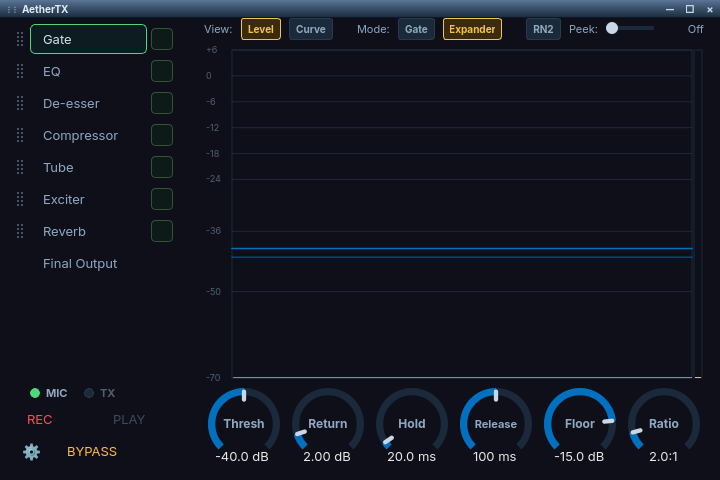
The AetherTX window: the transmit processing chain on the left, the selected stage's controls on the right.
Requirements
AetherTX needs a computer microphone. AetherRX has no requirements: it processes the receive audio the radio already sends you.
AetherTX processes a microphone connected to this computer. A mic plugged into the radio bypasses it. The window shows a notice that names the fix whenever the audio path is wrong:
- On a FlexRadio, set Microphone source to PC in the Phone/CW (P/CW) applet.
- On a radio that takes its transmit audio over the network (such as a networked Icom), turn on PC Audio in the title bar.
While the path is wrong, the docked Aetherial Audio applet replaces its TX controls with the same guidance, and AetherTX and the TX stage editors refuse to open. Receive views stay available. Fixing the path restores the controls.
DAX/TCI transmit audio (WSJT-X, fldigi and other digital-mode programs) and RADE digital voice never pass through AetherTX, so their tones reach the radio unshaped.
Using the AetherTX and AetherRX windows
AetherTX and AetherRX share one layout:
- The tab column on the left is the chain. Each stage has a row with an enable checkbox and a drag grip. Tick the box to switch the stage on, and drag a row to change the order the audio meets the stages. The order is saved.
- Click a row to show that stage. Every stage page has the same shape: switches along the top, the display under them, and every knob in one row at the foot.
- Knobs accept typed values as well as dragging.
- The foot of the tab column holds the live controls: a REC / PLAY pair, BYPASS, and a Settings gear for the profile library.
Right-clicking a DSP button elsewhere in the app (for example on the VFO flag) still opens a quick parameter popup without opening either window.
Using AetherTX
Signal path
The transmit voice chain runs at a fixed 48 kHz in floating point. The microphone is captured at whatever rate the device negotiates, converted to float once and brought to 48 kHz. After the chain, a single high-quality conversion takes it to the radio's 24 kHz transport rate, with dither, before the one final conversion to 16-bit.
PC mic → (RN2) → Gate → EQ → De-esser → Compressor → Tube → Exciter → Reverb
       → Final Output (Quindar, limiter, meters) → radio
The middle seven stages are the reorderable chain; the order above is the default.
Stages
| Tab | What it does |
|---|---|
| Gate | Downward expander or noise gate. Also holds the RN2 microphone noise reducer. |
| EQ | Parametric EQ with an optional reference target curve. |
| De-esser | Split-band sibilance control. |
| Compressor | Compressor with Drive/Phase peak-to-average (PAPR) controls and its own brickwall limiter. |
| Tube | Dynamic tube saturator. |
| Exciter | AetherVoice™ harmonic exciter. |
| Reverb | Freeverb room reverb. Off by default. |
| Final Output | Final limiter (LIM), DC block, test tone, Quindar tones, output meters with HOLD, and a waveform scope. |
REC / PLAY: the transmit monitor
REC records up to 30 seconds of processed transmit audio without keying the radio. Click it again to stop early; playback then starts by itself. PLAY plays the capture back; click it during playback to cancel. The receive audio is muted while recording and playing back so you hear only your own voice.
Use it to tune the chain without putting a signal on the air: record a test phrase, listen, adjust a stage, record again. A phrase such as "The quick brown fox jumps over the lazy dog. Five or six big jet planes flew over the quiet countryside" covers most sounds.
Each recording is also written to pudu_monitor.wav in the system temporary
folder, overwritten every time, so you can inspect it in an audio editor.
BYPASS
BYPASS switches every transmit stage off at once, including RN2, so the microphone reaches the radio unprocessed. Click it again to restore exactly the stages that were on. It is the quickest A/B test of what the chain is doing.
MIC and TX indicators
At the foot of the tab column, MIC lights when the PC microphone is selected and DAX is off, which means the chain really is in the transmit path. TX lights while you are transmitting on your own slice.
Using AetherRX
AetherRX processes the audio the radio is already sending you, so there is no routing to set up. The radio's own AGC, noise blanker and noise reduction run first; AetherRX adds finishing on top.
Stages
| Tab | What it does |
|---|---|
| AetherNR | The client-side noise-reduction methods (NR2, RN2, NR4, MNR, BNR, DFNR and NNR) with their full settings. Always first. See DSP Noise Mitigation. |
| Gate | Expander or gate, useful for knocking down hiss between overs. |
| EQ | Parametric EQ. The page also draws the slice's receive filter edges; dragging an edge changes the receive filter. |
| Compressor | Gentle levelling between loud and quiet stations. |
| Tube | Saturation for warmth, in small doses. |
| Exciter | AetherVoice presence and body. |
| Final Output | Output trim, MUTE and BOOST, output meter and waveform scope. Always last. |
Gate, EQ, Compressor, Tube and Exciter are the reorderable chain. There is no de-esser or reverb on receive.
REC / PLAY and TX Playback
AetherRX's REC / PLAY pair records and plays back received audio through the same path as the record and play buttons on the VFO flag.
Right-click PLAY for TX Playback, which transmits the last client-side recording on the active slice. Select it again to stop. Playback is capped at the idle timeout set in the recording settings (Settings → Radio Setup... → Audio), and the transmitter is released if anything refuses or the radio disconnects.
BYPASS
RX BYPASS suppresses every receive stage at once, AetherNR included, so you hear the radio's audio unprocessed. Click it again to restore whatever was on, including the noise-reduction method that was running.
What is useful on receive
- EQ: pull harshness out of bright stations, add body to thin ones, tame a fatiguing midrange bump over a long contest. Boosting above your receive filter is wasted.
- Gate in Expander mode: knocks down inter-syllable hiss on a noisy band without the pumping of a hard gate.
- Compressor at a low ratio (1.5:1 to 2:1, 2–4 dB of reduction): evens out strength differences in a pile-up so you are not riding the AF gain.
- Tube and Exciter: a little warmth or presence on thin stations. Easy to overdo.
What to avoid: heavy compression lifts weak signals and noise along with strong ones, which is the radio's AGC job; and high tube drive just adds harmonic mud to a noisy band.
Using profiles
The Settings gear at the foot of each window opens its profile library (AetherTX Settings or AetherRX Settings). A profile is the whole chain: every stage's settings, which stages are on, and their order. An AetherRX profile also records the active noise-reduction method.
| Button | Action |
|---|---|
| Save… | Store the chain as it is now under a name (asks before replacing an existing name) |
| Load | Apply the selected profile (double-click does the same) |
| Delete | Remove the selected profile |
| Import… | Read a profile from a JSON file and save it under a name you choose |
| Export… | Write the selected profile to a JSON file to share or back up |
Loading a TX profile leaves the receive side alone, and the other way round.
Individual settings live in AetherSDR's settings database; you can inspect them with Settings → Settings Browser... (see Settings and Backups).
Using the docked applet
The Aetherial Audio applet in the applet panel (button TXDSP) is the compact companion to the two windows:
- TX / RX selects which chain is shown, and BYPASS bypasses that chain.
- The chain strip shows each stage as a box. Single-click a box to switch the stage on or off, double-click it to open that stage's editor, and drag it to reorder. The delay used to tell a single click from a double click is Settings → Radio Setup... → Appearance & Behavior → Single-click delay.
- On the TX side, ⏺ / ▶ drive the same transmit monitor as AetherTX's REC / PLAY.
- Compact tiles for individual stages sit below the strip.
Reference
The ranges below are the knob ranges in the current windows.
Gate
Kills room noise, fan rumble and mic hiss in your pauses (TX), or hiss between overs (RX).
Mode: Gate (hard, snaps to 10:1 ratio and −40 dB floor) or Expander (gentle, snaps to 2:1 and −15 dB). Switching mode changes only ratio and floor; every other knob stays where you put it.
View: Level shows the live level history; Curve shows the static transfer curve.
RN2 (AetherTX only): the RNNoise microphone denoiser. It runs ahead of every chain stage, so noise is removed before the gate, compressor or tube can amplify it. Voice modes only, saved in the profile, and suppressed by BYPASS.
Peek: look-ahead, in steps of Off, 1, 1.5, 3 and 5 ms, so the gate opens before a transient instead of clipping its start.
| Knob | Range | What it does |
|---|---|---|
| Thresh | −80 to 0 dB | Level below which the gate begins to close |
| Return | 0 to 20 dB | Hysteresis: opens above Thresh, closes below (Thresh − Return) |
| Hold | 0 to 500 ms | Time the gate stays open before release starts |
| Release | 5 to 2000 ms | How fast the gate closes after the signal drops |
| Floor | −80 to 0 dB | Maximum attenuation the gate applies |
| Ratio | 1 to 10 : 1 | Steepness of the expansion |
Example: SSB voice with room noise. Start in Expander. Set Thresh just above your noise floor and below your quietest syllables (around −35 dB), Release about 80 ms, Hold about 20 ms so sibilants don't stutter, Floor −15 dB so the room never goes completely dead, and Return about 3 dB so the gate doesn't flutter when your voice hovers near the threshold. If it pumps audibly, lengthen Release.
EQ
A parametric EQ with ten bands by default (high-pass, low shelf, peaking bands, high shelf and low-pass), each with frequency, gain and Q. Drag band handles on the response curve, or select a band and type values.
Toolbar controls:
- Ref: overlays an amber reference target curve: Off, AT&T 1959, Heil DX, Astatic D-104, Shure 444 or Heil HC-5. It is a visual guide only; it does not change the audio.
- Smoothing: fractional-octave smoothing of the analyser trace (display only).
- Peak Hold: freezes the analyser's peak trace.
- Filter family for the high-pass and low-pass slopes: Butterworth, Chebyshev, Bessel or Elliptic.
- Reset returns every band to its default.
When AetherTX's EQ is in use, leave the radio's own TX EQ flat.
Example: male voice, dynamic mic. High-pass at 80 Hz to remove handling noise; −3 dB around 200 Hz to cut mud; −2 dB around 500 Hz to scoop boxiness; +3 dB at 2 kHz and +2 dB at 3.5 kHz for presence; low-pass at your SSB filter width (about 3 kHz). For a bright condenser mic, do the opposite: a little low-mid warmth, pull back 2–4 kHz, roll off above 4 kHz.
De-esser (AetherTX)
Suppresses harsh "sss" and "shh" energy without dulling the rest of the voice. It is split-band: when the sibilant band crosses the threshold, only that band is turned down, so the rest of your voice keeps its level and your average power does not drop.
| Control | Range | What it does |
|---|---|---|
| Freq | 1 to 12 kHz | Centre of the sibilant band |
| Q | 0.5 to 5 | Width of the band (higher = narrower) |
| Threshold | −60 to 0 dB | Sidechain level where reduction begins |
| Amount | −24 to 0 dB | Maximum reduction of the sibilant band |
| Attack | 0.1 to 30 ms | How fast reduction engages |
| Release | 10 to 500 ms | How fast it recovers |
| Slope button | 12 / 24 / 36 / 48 dB/oct | Steepness of the sibilant band; click to cycle. Default 24 dB/oct |
Finding your sibilant frequency: sweep Freq while saying "sister silver cellophane" and park where the sibilance is loudest. Start with Amount around −6 dB and go further only if you still hear harshness. Too low a threshold leaves the de-esser working all the time and dulls the voice.
Compressor
Levels the signal: brings quiet syllables up and holds loud ones back.
- Threshold: the vertical fader on the left, which doubles as the input meter, so you can set the threshold against your own voice peaks.
- Makeup: drag the handle on the Out meter (−12 to +24 dB). It can also be adjusted from the keyboard.
- Limiter / Ceiling: the compressor's own brickwall peak limiter and its ceiling (−24 to 0 dB, default −1 dB). The Limiter button glows red while it is clamping. This is separate from the LIM limiter on Final Output.
| Knob | Range | What it does |
|---|---|---|
| Ratio | 1:1 to 20:1 | How hard to compress above the threshold |
| Attack | 0.1 to 300 ms | Transient response |
| Release | 5 to 2000 ms | Recovery speed |
| Knee | 0 to 24 dB | Soft-knee width (0 = hard knee) |
| Drive | 0 to +18 dB | AetherTX only. Gain before the threshold so the compressor works harder; makeup follows it, so average power rises with the peaks. Default 0 |
| Phase | Off, 1–6 stages | AetherTX only. All-pass phase rotator that evens out lopsided voice peaks before compression, lowering peak-to-average ratio. 4 is the broadcast default |
Drive and Phase together are the PAPR controls: they raise your average transmitted power without pushing peaks past the ceiling. They are hidden on receive.
Example: broadcast-style SSB. Threshold about −20 dB, Ratio 4:1, Attack 20 ms (keeps consonants crisp), Release 150 ms, Knee 6 dB, makeup until peaks sit around −3 dB on the Out meter, Limiter on with the ceiling at −1 dB. Aim for 3–6 dB of gain reduction on peaks; more than 10 dB is obvious compression that suits contests better than rag-chews.
Tube
Analog-style saturation for warmth and harmonic colour.
Model: A (symmetric, neutral warmth), B (hard clip into soft saturation, edgier) or C (asymmetric, even harmonics, warmest).
| Control | Range | What it does |
|---|---|---|
| Drive | 0 to 24 dB | How hard the signal hits the saturator |
| Tone | −1 to +1 | Tilt filter: negative darkens, positive brightens |
| Bias | 0 to 100 % | Asymmetry of the curve (more even harmonics) |
| Envelope | −100 to +100 % | Dynamic drive: negative eases drive on peaks, positive adds to it |
| Release | 10 to 500 ms | Envelope-follower release |
| Output | −24 to +12 dB | Output gain |
| Dry/Wet | 0 to 100 % | Blend of dry and saturated signal (parallel saturation) |
Example: subtle warmth. Model A, Drive 6 dB, Tone +0.2, Bias 15 %, Dry/Wet 40 %, Output about −1 dB to match unity gain.
Exciter (AetherVoice™)
Adds sparkle at the top and body at the bottom. Even generates even harmonics with asymmetric shaping (warmer); Odd generates odd harmonics with symmetric shaping (edgier, cuts through noise).
| Section | Knob | Range | What it does |
|---|---|---|---|
| Low | Drive | 0 to 24 dB | Low-frequency enhancement drive |
| Low | Tune | 50 to 160 Hz | Low-frequency corner |
| Low | Mix | 0 to 100 % | How much low-frequency enhancement is added |
| High | Tune | 1 to 10 kHz | High-frequency corner |
| High | Air | 0 to 24 dB | Amount of high-frequency harmonic generation |
| High | Mix | 0 to 100 % | How much high-frequency enhancement is added |
The AetherVoice wordmark glows with the wet signal level, confirming the exciter is actually adding energy.
Pitfall: stacking the exciter on top of a bright EQ shelf and heavy tube drive gives a harsh, hyped sound. Pick one place to add brightness.
Reverb (AetherTX)
Freeverb room reverb. Reverb trades intelligibility for size, so it ships off and suits rag-chew or AM more than DX or contesting.
| Knob | Range | What it does |
|---|---|---|
| Size | 0 to 100 % | Room size |
| Decay | 0.3 to 5 s | Tail length |
| Damp | 0 to 100 % | High-frequency absorption in the tail (higher = warmer) |
| PreDly | 0 to 100 ms | Gap before the tail starts |
| Mix | 0 to 100 % | Dry/wet blend |
Example: subtle broadcast space. Size 35 %, Decay 0.8 s, Damp 70 %, PreDly 15 ms, Mix 8 %. Keep the reverb last in the chain; a compressor after it squashes the tail. Pre-delay adds directly to the delay of the wet signal, which you will notice on quick overs.
Final Output (AetherTX)
The last stage before the radio.
| Control | What it does |
|---|---|
| LIM | Final brickwall limiter at the end of the TX chain. Off by default |
| DC | 25 Hz high-pass that strips DC offset |
| TONE | 1 kHz test tone injected at the head of the chain; right-click for frequency and level |
| QUIN | Quindar tones on PTT engage and release; right-click for the editor (below) |
| Trim | Output gain, −12 to +12 dB |
| HOLD | When lit, the PK / RMS / GR / CRST readouts latch the worst value since you engaged it. Click again to release |
The horizontal meter shows the input peak, the output peak, gain reduction and the limiter ceiling as a draggable handle. OVR latches red on a clip and clears itself; LIMIT lights while the limiter is clamping. The waveform scope below the meter shows what you are sending.
Quindar tones
NASA's Apollo-era voice-loop chirp: a 2525 Hz tone when you key and 2475 Hz when you unkey. Right-click QUIN to set:
- Style: Tone (the classic chirp) or Morse (sends "K" and "BK").
- Level: −20 to 0 dBFS.
- Tone: intro and outro frequency (2400–2700 Hz) and duration (100–500 ms).
- Morse: speed (20–60 WPM) and pitch (400–1200 Hz).
- Test intro / Test outro audition the tone locally without keying.
Final Output (AetherRX)
Output Trim (−12 to +12 dB), MUTE and BOOST, with a level meter and a waveform scope, so you can match the processed receive path against the dry one.
Starting points by mic and voice
Tune from here; don't just load and transmit. Record yourself with REC/PLAY after every change.
Dynamic broadcast mic (e.g. SM7B), male voice
| Stage | Setting |
|---|---|
| Gate | Expander, Thresh −40, Ratio 2.5, Release 80 ms, Floor −15 |
| EQ | HPF 80, −3 @ 200, +3 @ 2k, +1 @ 3.5k, LPF 3.1k |
| De-esser | Freq 5k, Q 2, Threshold −25, Amount −6 |
| Compressor | Ratio 4:1, Attack 25, Release 150, makeup +5, Limiter on at −1 |
| Tube | Model A, Drive 6, Tone +0.2, Dry/Wet 40 % |
| Exciter | Even, low Mix 20 %, high Air 6, high Mix 20 % |
| Reverb | Off, or Size 30 %, Decay 0.7 s, Damp 70 %, PreDly 15 ms, Mix 6 % |
Condenser mic, female voice
| Stage | Setting |
|---|---|
| Gate | Expander, Thresh −45, Ratio 2, Release 60 ms |
| EQ | HPF 100, −2 @ 400, −2 @ 3k, +2 @ 5k, LPF 3.1k |
| De-esser | Freq 7k, Q 2.5, Threshold −22, Amount −8 (condensers are sibilance-heavy) |
| Compressor | Ratio 3:1, Attack 20, Release 120, makeup +4 |
| Tube | Model C, Drive 9, Bias 20 %, Dry/Wet 45 % |
| Exciter | Even, low Mix 15 %, high Mix 10 % |
| Reverb | Off |
Contest / DX punch
| Stage | Setting |
|---|---|
| Gate | Gate mode, Thresh −35, Release 100 ms |
| EQ | HPF 200, +2 @ 500, −3 @ 1k, +5 @ 2.5k |
| De-esser | Freq 5k, Q 2, Threshold −20, Amount −9 |
| Compressor | Ratio 8:1, Attack 10, Release 100, makeup +8, Limiter on; try Drive +6 and Phase 4 |
| Tube | Model B, Drive 12, Dry/Wet 60 % |
| Exciter | Odd, high Air 12, high Mix 40 % |
| Reverb | Off |
Known issues
- With the default AetherTX chain, transmit output can be well below the radio's rated power, and reaching full PEP needs a high Trim (#2876).
- Turning on RN2 in AetherTX can sharply reduce your transmit audio level and RF output (#4859).
- With Mic source set to PC, transmit audio can be silent after startup until you switch the source to BAL and back to PC (#5442).
Troubleshooting
You changed a knob and nothing happened
The stage is switched off, the chain is bypassed, or (on AetherTX) the chain is not in the transmit path.
- Check that the stage's checkbox is ticked in the tab column.
- Check that BYPASS is not lit.
- On AetherTX, check that MIC is lit. If it is not, fix the audio path as described in Requirements.
AetherTX won't open
The audio path is wrong. The message names the fix.
- On a FlexRadio, set Microphone source to PC in the P/CW applet.
- On a radio that takes its transmit audio over the network, turn on PC Audio in the title bar.
The monitor plays silence
REC only captures when the PC microphone is selected and DAX is off.
- Set Microphone source to PC.
- Switch DAX off.
- Check that MIC is lit, then press REC again.
Your audio sounds worse, not better
You are probably over-processing.
- Press BYPASS and listen to the dry signal.
- If the dry signal is fine, switch stages off.
- Start again with EQ and gentle compression, and add stages one at a time, recording with REC / PLAY after each change.
Reordering the chain did nothing audible
Order matters most between dynamics stages. Gate before EQ and gate after EQ put the noise floor in different places; compressor before tube compresses the dry signal, compressor after tube compresses the saturation harmonics.
- Move the gate, compressor or tube relative to each other.
- Record with REC / PLAY before and after the change, and compare.
BYPASS didn't restore your previous state
BYPASS restores the stages that were on when you pressed it. A stage you switched by hand while bypassed counts as a manual change.
- Release BYPASS.
- Switch the stages you want back on by hand.
See also
- TX Controls — the TX, Phone and P/CW applets around the chain.
- RX Controls — receive controls, squelch and AGC.
- DSP Noise Mitigation — the noise-reduction methods on AetherRX's AetherNR tab.
- Audio Settings — PC audio devices and recording.
- Settings and Backups — where profiles and settings are stored.