First Connection
Status: Supported · Applies to: FlexRadio
This page walks through connecting to a FlexRadio for the first time. AetherSDR also connects to other radio families, and has a demo mode that needs no radio at all; see Supported Radios and Demo Mode.
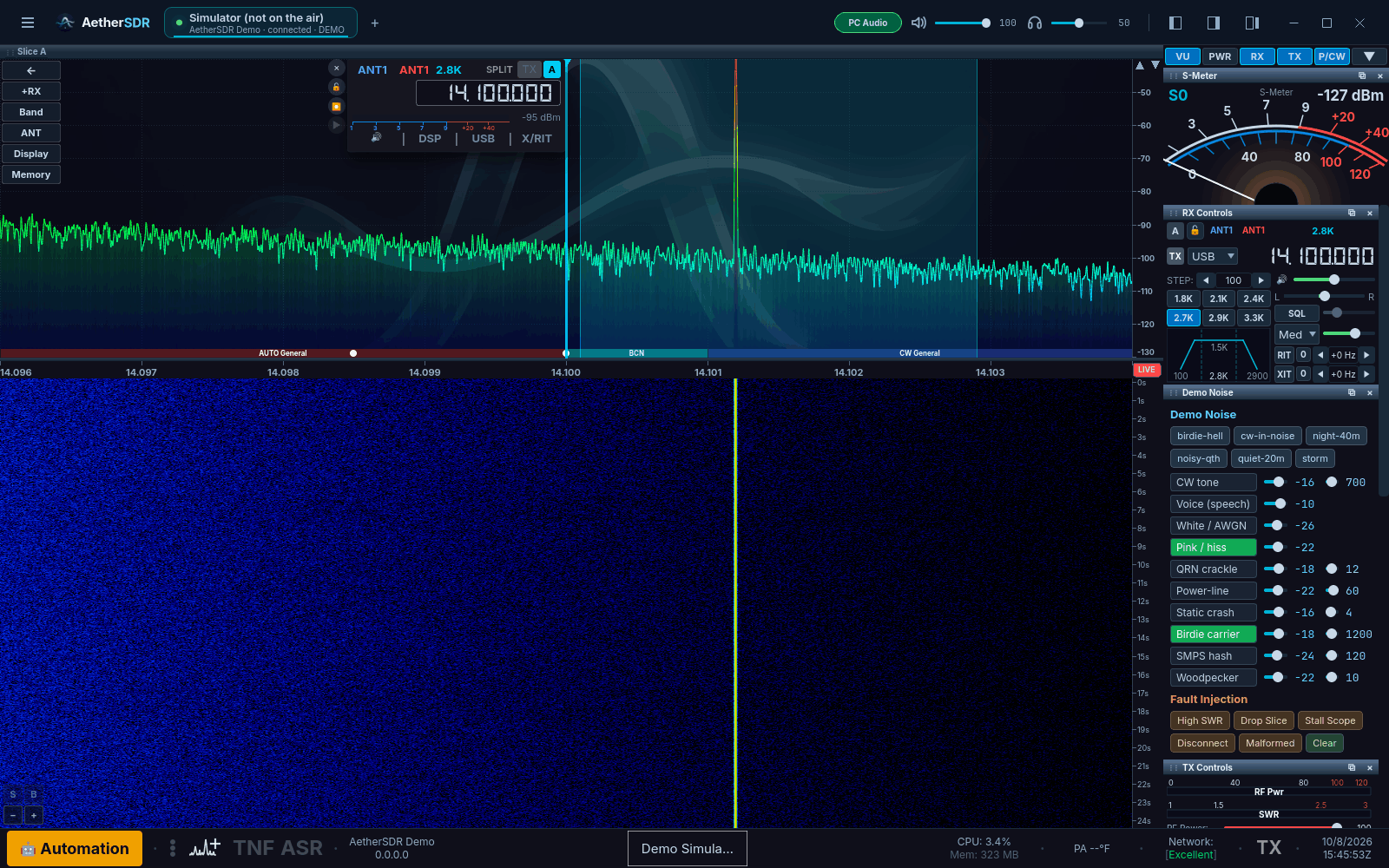
The AetherSDR main window connected to the demo simulator: title bar along the top, panadapter and waterfall on the left, applet panel on the right, status bar along the bottom.
Requirements
- A FlexRadio transceiver (FLEX-6000, FLEX-8000 or Aurora series) powered on
- Your computer on the same network as the radio
- AetherSDR installed (Installation)
Setup
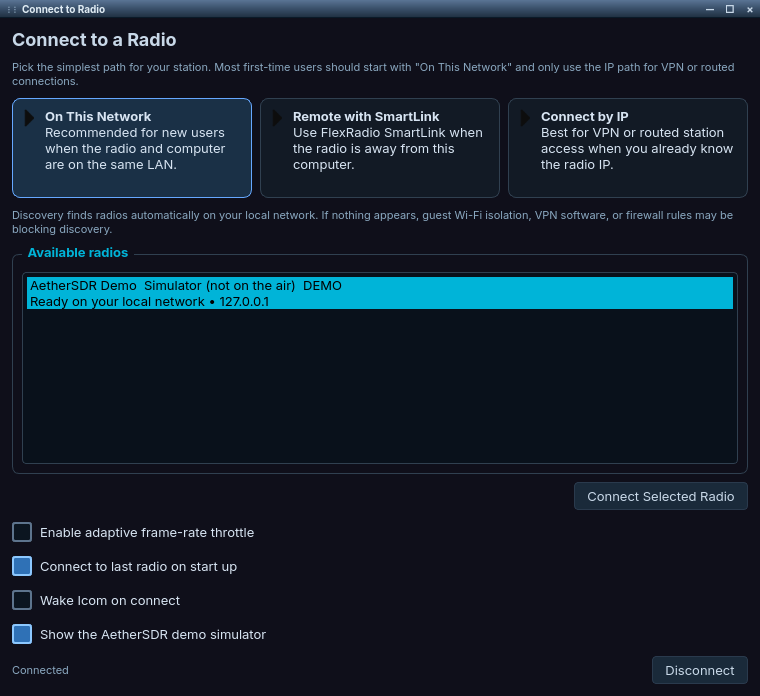
The Connect to Radio window with the AetherSDR demo simulator listed under On This Network.
- Launch AetherSDR. The Connect to Radio window opens. You can reopen it at any time with File → Connect to Radio..., or from the + button beside the title bar's radio tabs.
- Choose On This Network ("Recommended for new users when the radio and computer are on the same LAN").
- Your radio appears under Available radios within a few seconds.
- Select it and click Connect Selected Radio.
- The spectrum and waterfall appear, and audio starts playing through your default output device.
If no radio appears, the window shows "No local radios found yet" with Retry Discovery, Remote with SmartLink, Connect by IP and Open Network Diagnostics buttons. See Troubleshooting.
The list can also include:
- Hermes-Lite 2 and ANAN-G2 radios on the same LAN, and RTL-SDR dongles plugged into this computer (on builds with the RTL-SDR backend).
- AetherSDR Demo, labelled "Simulator (not on the air)". It always sorts below real radios. Untick Show the AetherSDR demo simulator to hide it.
What to Expect
After connecting, you'll see:
- Spectrum (top) showing the RF environment
- Waterfall (bottom) scrolling in real time
- VFO widget with frequency, S-meter and controls
- Title bar with a tab for the radio; its dot pulses with each heartbeat and turns red with "link lost" if the connection drops
- Applet panel (right) with the RX, TX, P/CW and other applets
Controls that the connected radio cannot use are hidden or dimmed with a reason. Continue with Your First Session.
Other Ways to Connect
Auto-connect
With Connect to last radio on start up checked (the default), AetherSDR reconnects to the last radio on the next launch if it is reachable. Untick it in the Connect to Radio window to choose a radio yourself each time. If startup auto-connect gives up, the Connect to Radio window opens again.
Connect by IP (routed networks)
If your radio is on a different subnet or behind a VPN, discovery cannot see it. Choose the Connect by IP card, set Radio type:, enter Radio IP: and click Connect by IP. See Manual Connection.
SmartLink (remote operation)
Choose Remote with SmartLink to reach a FlexRadio over the internet. See SmartLink Setup.
Known issues
- On a FLEX-8600 on macOS, receive audio can stutter badly on the first connection until the radio is restarted (#5700).
- On Windows, a FLEX-6300 that SmartSDR finds on the network may not appear under On This Network (#6221).
Troubleshooting
The radio does not appear in the list
Discovery broadcasts do not cross routers or most VPNs, and guest Wi-Fi isolation, VPN software or firewall rules can block them.
- Make sure the radio and computer are on the same subnet.
- Check the radio is reachable:
ping <radio-ip>. - Allow UDP port 4992 through the firewall (for example
sudo ufw allow 4992/udp). - Click Open Network Diagnostics to narrow it down.
- If the radio is on another subnet or behind a VPN, use Connect by IP; see Manual Connection.
The radio refuses the connection
The radio rejected AetherSDR's client registration (for example with error F3000001). AetherSDR closes the connection, does not retry on its own, and returns to the Connect to Radio window with the radio's error.
- Follow the message shown: typically another client must disconnect first, or the radio needs a restart.
- If the Connected Stations dialog appears, select a station and click Disconnect Station; see Multi-Flex.
Connected, but no audio
The PC audio path is off, or the wrong output device is selected.
- Check that PC Audio is on in the title bar.
- Open Settings → Radio Setup... → Audio and check the output device. See Audio Settings.
- Check that the slice and the title-bar speaker are not muted.
Spectrum, but no waterfall
The waterfall needs data from the radio before it starts drawing.
- Wait a few seconds.