RX Controls
The RX applet in the applet panel is the slice-centred receive control surface. It repeats the slice's identity at the top and gives you step size, filter, audio, squelch, AGC and RIT/XIT for the selected slice, with more room than the compact VFO flag. Radio-side DSP buttons (NR, NB, ANF, APF, NRL, NRS, RNN, NRF, ANFL, ANFT) are on the VFO flag's DSP tab; see VFO Widget.
Most of this page describes a FlexRadio. On other radio families, controls the radio cannot honour are dimmed with the reason in their tooltip, or refuse with a notice; see Using the controls on other radios below.
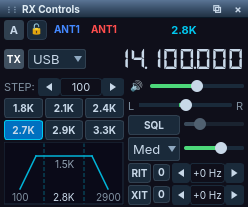
The RX Controls applet for the active slice.
Using the RX applet
Header row
- Slice badge — the slice letter, in the slice's colour (see Slice Colors)
- Lock icon — tune lock
- Antenna — RX and TX antenna buttons. They show the local display names you set in Settings → Radio Setup... → Antennas (for example "80m Dipole"), while the radio still uses ANT1/ANT2.
- Filter width — current filter bandwidth (reads AUTO while the adaptive RX filter is fitting)
- TX badge — shows whether this slice transmits
- Frequency — double-click to enter directly
Step size
Step stepper with ◀ ▶ buttons. Available sizes: 10, 50, 100, 250, 500, 1000, 2500, 5000, 10000 Hz. Step sizes are mode-dependent.
Filter presets
Mode-dependent filter width buttons (FlexRadio):
- USB/LSB: 1.8K, 2.1K, 2.4K, 2.7K, 2.9K, 3.3K, 4K, 6K
- CW: 50, 100, 250, 400, 500, 600, 800, 1K
- AM/SAM: 5.6K, 6K, 8K, 10K, 12K, 14K, 16K, 20K
- DIGU/DIGL: 100, 300, 600, 1K, 1.5K, 2K, 3K, 6K
- RTTY: 250, 300, 350, 400, 500, 1K, 1.5K, 3K
- DFM: 6K to 20K in 2K steps
- FM/NFM: fixed by the radio
Radios that publish their own filter widths (such as networked Icom) show those instead.
Adaptive RX filter (USB/LSB)
An automatic filter that fits the passband to the station you are hearing. It is on the VFO flag's mode tab, under the filter-width buttons, not in this applet: tick Adaptive RX filter and set the Lo cut / Hi cut bounds and the SNR, Speed, Splat and Het options. The filter readout shows AUTO while a fit is live, it is suspended while you transmit, and any manual filter change takes back control. See VFO Widget.
AF gain, pan and mute
- AF slider (0–100) — slice audio volume
- Pan slider (L/R) — stereo balance with a centre marker
- Mute (speaker icon):
- single-click mutes or unmutes this slice;
- double-click mutes or unmutes all your slices.
AetherSDR waits briefly after a click to see whether it is a double-click. Set the wait in Settings → Radio Setup... → Appearance & Behavior → Single-click delay (0–1000 ms, with Reset for the platform default). At 0, single clicks act instantly and double-click actions are disabled.
Mute belongs to the radio: AetherSDR does not restore a slice's mute itself when you reconnect.
Squelch
The SQL button cycles through three states:
| State | Button | What the slider sets |
|---|---|---|
| Off | plain | — |
| SQL (manual) | lit | The squelch level |
| AUTO | amber, labelled AUTO | A margin of 5–20 dB above the measured panadapter noise floor (default 10 dB) |
- In AUTO, squelch tracks the band's noise floor as it changes, opening only for signals that stand the margin above it.
- In SQL, a threshold line shows on the panadapter while you adjust it and hides itself 3 seconds after you stop.
- Your manual level is remembered per slice, whichever control changes it (applet, VFO flag, MIDI or other controllers, the radio or another client). Auto tracking never overwrites it, so switching back from AUTO returns to your manual level.
- Switching a slice to RTTY turns squelch off, because squelch breaks the decode.
- The squelch scale, the panadapter SQL line and Auto SQL follow each radio's own scale. On radios where Auto SQL is not available, a slice set to AUTO drops to manual at its manual level.
Upgrading from an older version: AetherSDR no longer saves the squelch level between sessions. On connect, each slice uses the level the radio reports.
AGC
- Mode — Off, Slow, Med, Fast
- AGC-T slider — the AGC threshold
AGC-T calibration: right-click the AGC-T slider, or use Tools → Calibrate AGC-T..., to calibrate the threshold against the measured noise floor on the active slice. It does not transmit.
On the Hermes-Lite 2, AGC runs on the computer: with AGC Off, the AGC-T slider sets a fixed gain (4–64 dB, default 10 dB) remembered per receiver, and DIGU/DIGL open with AGC off. See Hermes-Lite 2.
RIT / XIT
- RIT — Receiver Incremental Tuning (toggle, zero and step buttons)
- XIT — Transmitter Incremental Tuning (same layout)
- Step: 10 Hz per click
FM controls (FM/NFM)
When FM or NFM is selected the applet shows repeater controls:
- Repeater Offset (MHz)
- Offset direction: −, Simplex, +, and REV (listen on the repeater input)
Tone mode and tone value (CTCSS) are on the VFO flag's FM tab. On networked Icom radios the REV button becomes XFC, a momentary transmit-frequency check.
Using client-side noise reduction
AetherSDR's own noise-reduction methods run on your computer, one at a time: NR2, RN2, NR4, MNR (macOS only), BNR (NVIDIA RTX/GeForce GPU, Linux and Windows), DFNR and NNR. Choose a method and adjust it on the AetherNR tab of Settings → AetherRX..., which also opens from the AetherRX launcher on the VFO flag's DSP tab. The launcher lights while a method is running. Right-clicking a DSP button gives a quick parameter popup.
- Each method processes the left and right channels separately, so pan and diversity are preserved.
- Client NR is for voice and turns itself off in CW, RTTY and digital modes.
- BYPASS at the foot of the AetherRX window turns off whichever method is running and restores it on the second click, for a quick A/B comparison.
See DSP Noise Mitigation and Aetherial Audio.
Using CW receive aids (APF and decoder)
- APF (audio peaking filter) toggle and level are in the P/CW applet in CW modes, as well as on the VFO flag. The level slider is inactive until APF is switched on.
- The CW decoder panel appears below the waterfall in CW modes. See CW Decoder.
Using WFM for satellite data
A software wide-FM demodulator for 9600-baud satellite data runs on the computer from DAX IQ. It is in the panadapter's DAX flyout: set IQ Ch first, then press WFM below it. The first time, choose a virtual audio cable as its output. It needs a radio with DAX IQ; other radios refuse with a notice. See DAX IQ Streaming.
Using the controls on other radios
On the Hermes-Lite 2, ANAN-G2, RTL-SDR and networked Icom radios, every control either works through the radio's own route, is dimmed with its reason in the tooltip and screen-reader description, or refuses with a notice (once per session) before anything is sent. Examples that refuse when the radio cannot do them: antenna choices the radio has no port for, WFM, CWL, and NR/ANF from MIDI or keyboard shortcuts. On these radios the NR cycle keyboard/controller action goes straight to the client NR2 method, because the radio has no NR of its own. See Supported Radios.
Known issues
- The squelch line, or Auto squelch, can appear in CW, RTTY and digital modes, where the SQL control is disabled (#6276).
- Switching a slice from DIGU to USB can turn squelch on, silencing the audio until you switch it off (#3505).
- On networked Icom radios, squelch can get stuck off once its level reaches 0, and only a non-zero change on the radio's front panel clears it (#6172).
Troubleshooting
A slice is still muted after you reconnect
Mute belongs to the radio. AetherSDR does not change a slice's mute itself when you reconnect, so the slice keeps the mute state the radio reports.
- Single-click the slice's Mute (speaker icon) in the RX applet to unmute it.
- To unmute all your slices at once, double-click Mute.
Double-clicking Mute only mutes one slice
The single-click delay is set to 0, which disables double-click actions.
- Open Settings → Radio Setup... → Appearance & Behavior.
- Raise Single-click delay above 0, or press Reset for the platform default.
Squelch switched off when you changed to RTTY
This is by design: squelch breaks the RTTY decode, so switching a slice to RTTY turns it off.
- When you leave RTTY, press SQL again if you want squelch back. Your manual level is remembered per slice.
The APF level slider does nothing
The level slider is inactive until APF is on.
- Switch on APF in the P/CW applet or on the VFO flag.
- Adjust the level.